Your cold emails are bouncing or landing in spam. You've crafted perfect copy, built a clean prospect list, and personalized every message. But none of it matters if your emails never reach the inbox.
The problem? Missing email authentication.
In 2025, Gmail, Yahoo, and Microsoft won't even look at your cold emails without proper SPF, DKIM, and DMARC setup. These protocols verify you're a legitimate sender, not a spammer or phishing attack. Without them, your messages get flagged, quarantined, or rejected outright.
This guide will show you exactly how to set up SPF, DKIM, and DMARC for cold email success. No technical jargon, just clear steps that actually work.
Why Email Providers Require DMARC DKIM SPF
Starting February 2024, Gmail changed the game. They required all senders exceeding 5,000 emails per day to have SPF, DKIM, and DMARC. Yahoo followed. Then Microsoft joined in May 2025.
The message was clear: authenticate or get blocked.
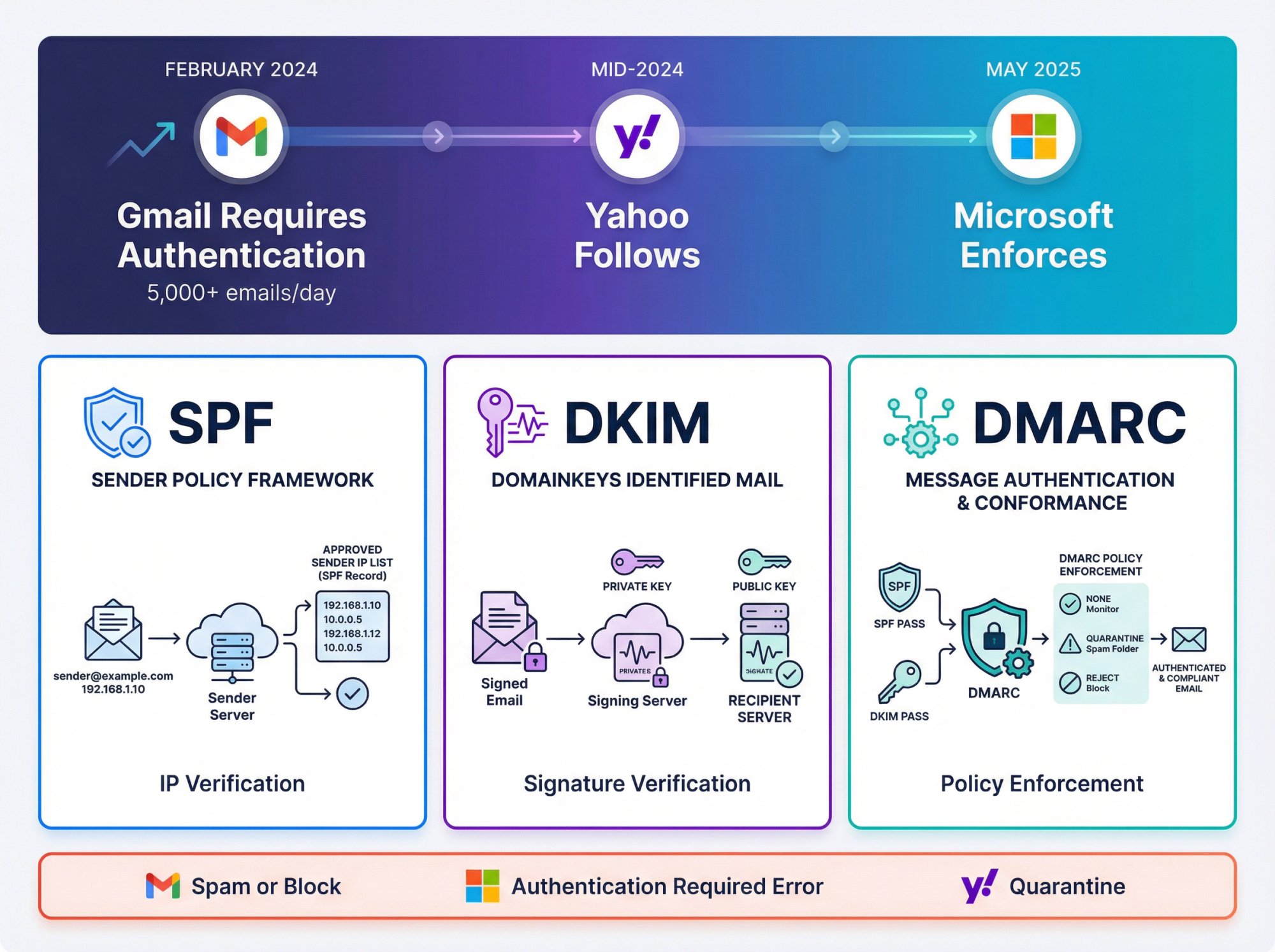
Here's what these providers now do to unauthenticated email:
• Gmail automatically sends it to spam or blocks it entirely
• Microsoft rejects messages with an "authentication required" error
• Yahoo quarantines anything that fails authentication checks
All major ISPs now treat SPF, DKIM, and DMARC as baseline requirements, not optional features. Even if you're sending under 5,000 emails daily, proper authentication dramatically improves your deliverability.
How Email Authentication Protocols Work
Think of these protocols as your domain's ID badge and security clearance.
SPF (Sender Policy Framework) creates an approved sender list. When someone receives an email from your domain, their server checks: "Is this IP address authorized to send for this domain?" If yes, SPF passes. If no, red flag.
DKIM (DomainKeys Identified Mail) adds an encrypted signature to every email. The receiving server verifies this signature using a public key in your DNS. If the signature matches and the message hasn't been tampered with, DKIM passes. If someone tries to spoof your domain, they can't forge your signature.
DMARC (Domain-Based Message Authentication, Reporting & Conformance) ties everything together. It tells receivers what to do when SPF or DKIM fails and makes sure the domain in your From address matches the authenticated domain. Plus, it sends you reports about who's using (or abusing) your domain.
Critical reality: Without these three protocols working together, you're basically showing up to a business meeting without ID. The security guards (email providers) won't let you through.
Email deliverability depends on proving your identity.
How to Set Up SPF for Cold Email
SPF is usually the quickest to configure. It's a single DNS record that lists which mail servers can send email from your domain as part of your cold email infrastructure setup.
Identify Every Service That Sends Emails
Make a complete list of services that send emails using your domain:
• Your primary email provider (Google Workspace, Microsoft 365, etc.)
• Your cold email platform
• Your CRM (HubSpot, Salesforce, etc.)
• Any marketing automation tools
• Transactional email services
Critical rule: Each domain needs exactly one SPF record that includes all these sources. Never create multiple SPF records. That breaks SPF entirely.
How to Build Your SPF Record
An SPF record starts with v=spf1, includes your authorized senders, and ends with an "all" mechanism that tells receivers how to handle unauthorized senders.
Example for Google Workspace only:
Example for Microsoft 365:
Example with multiple services:
The ~all (soft fail) at the end tells receivers to mark suspicious emails but still deliver them. Once you're confident your record is complete, you can switch to -all (hard fail) to tell receivers to reject anything not on your list.
How to Publish SPF Records in DNS
Log into your DNS provider (wherever you manage your domain). Add a new TXT record:
Field | Value |
|---|---|
Host/Name | @ (or leave blank for root domain) |
Type | TXT |
Value | Your SPF string (the v=spf1 ... string) |
Save and wait for DNS propagation (usually 5-30 minutes, occasionally up to 48 hours).
How to Verify SPF Is Working
Send a test email from your domain to a Gmail account. Open it in Gmail, click the three dots, choose "Show Original." Look for "SPF: PASS" in the authentication results.
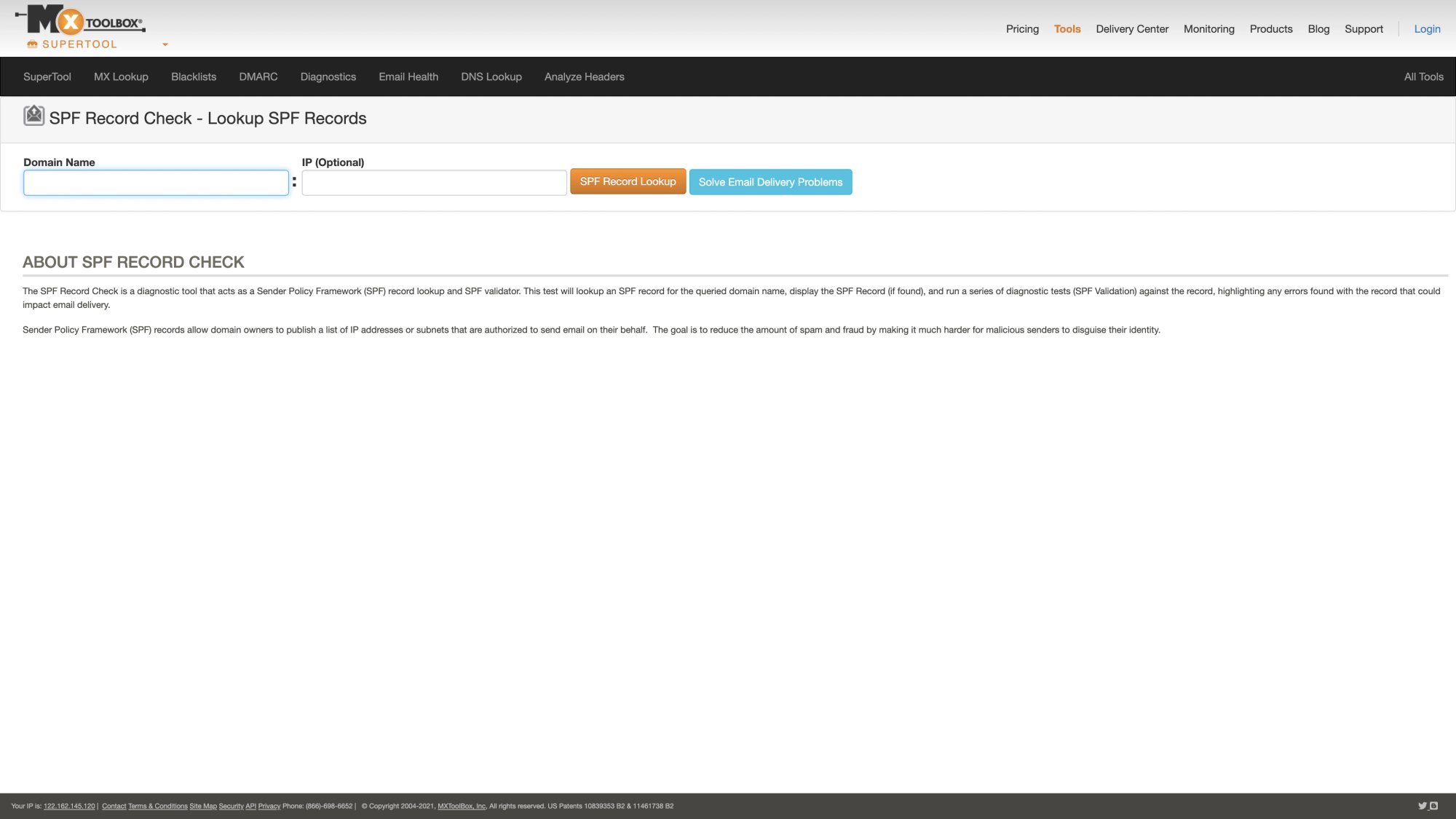
You can also use tools like MXToolbox's SPF checker to verify your record is correct.
Common SPF Setup Mistakes to Avoid
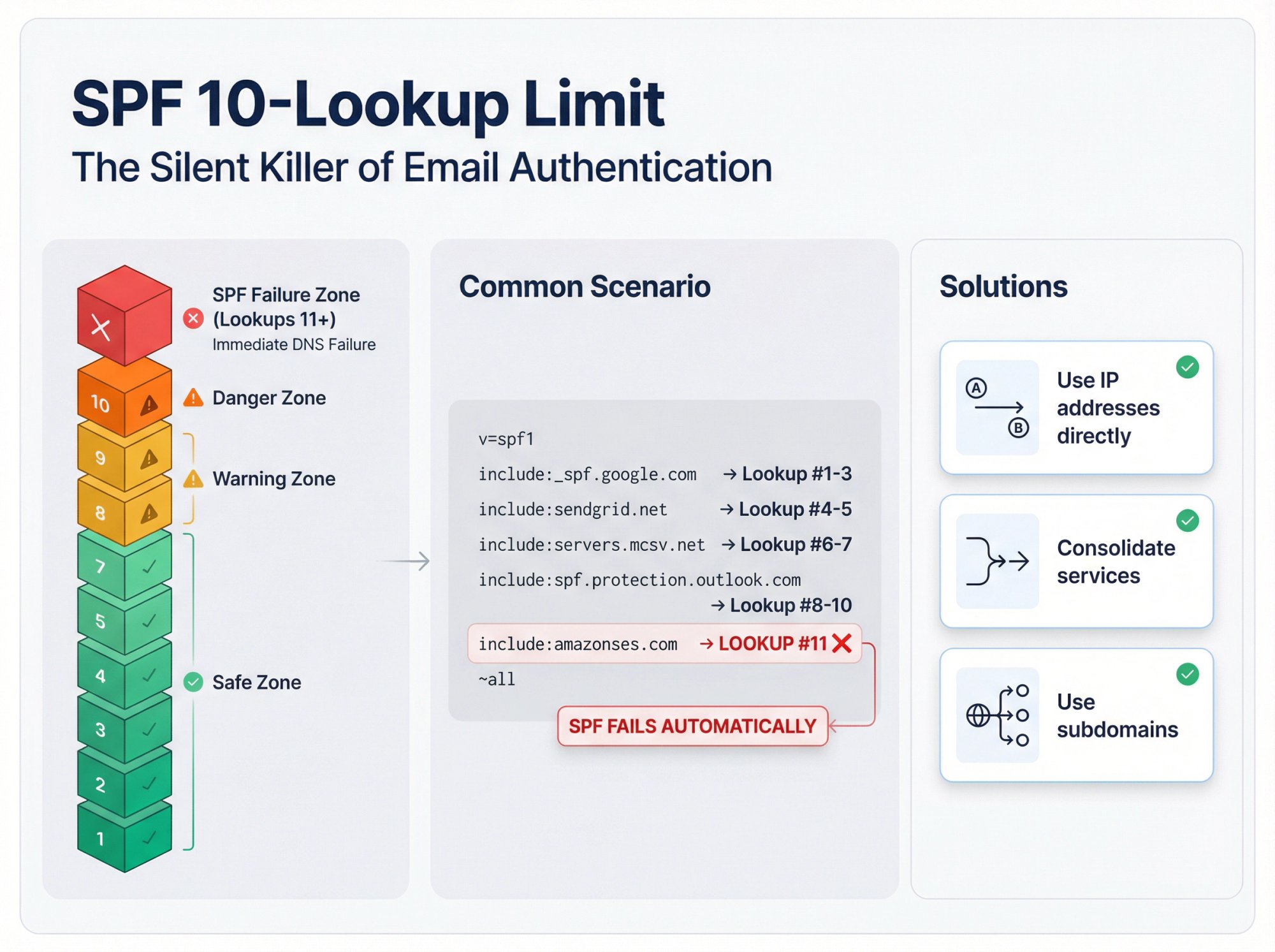
The 10-lookup limit. SPF has a hard limit of 10 DNS lookups. Each include: statement counts. If you exceed 10, SPF fails automatically. To fix this and reduce email bounce rates:
→ Use IP addresses directly instead of includes where possible
→ Consolidate services onto one platform
→ Use subdomains for different sending types
Multiple SPF records. Having two SPF TXT records on the same domain causes both to be ignored. Merge everything into one record.
Wrong domain. Make sure you're adding SPF to the domain you're actually sending from. If you send from outreach.yourcompany.com, that subdomain needs its own SPF record.
At Outbound System, we handle all SPF configuration as part of our setup process. Our Microsoft Azure infrastructure uses 350-700 U.S. IP inboxes depending on your plan, and we make sure every domain is properly authenticated before sending a single email.
How to Configure DKIM for Cold Email
DKIM is slightly more complex than SPF because it involves cryptographic keys. But the payoff is worth it. DKIM proves your emails haven't been altered in transit and genuinely come from your domain.
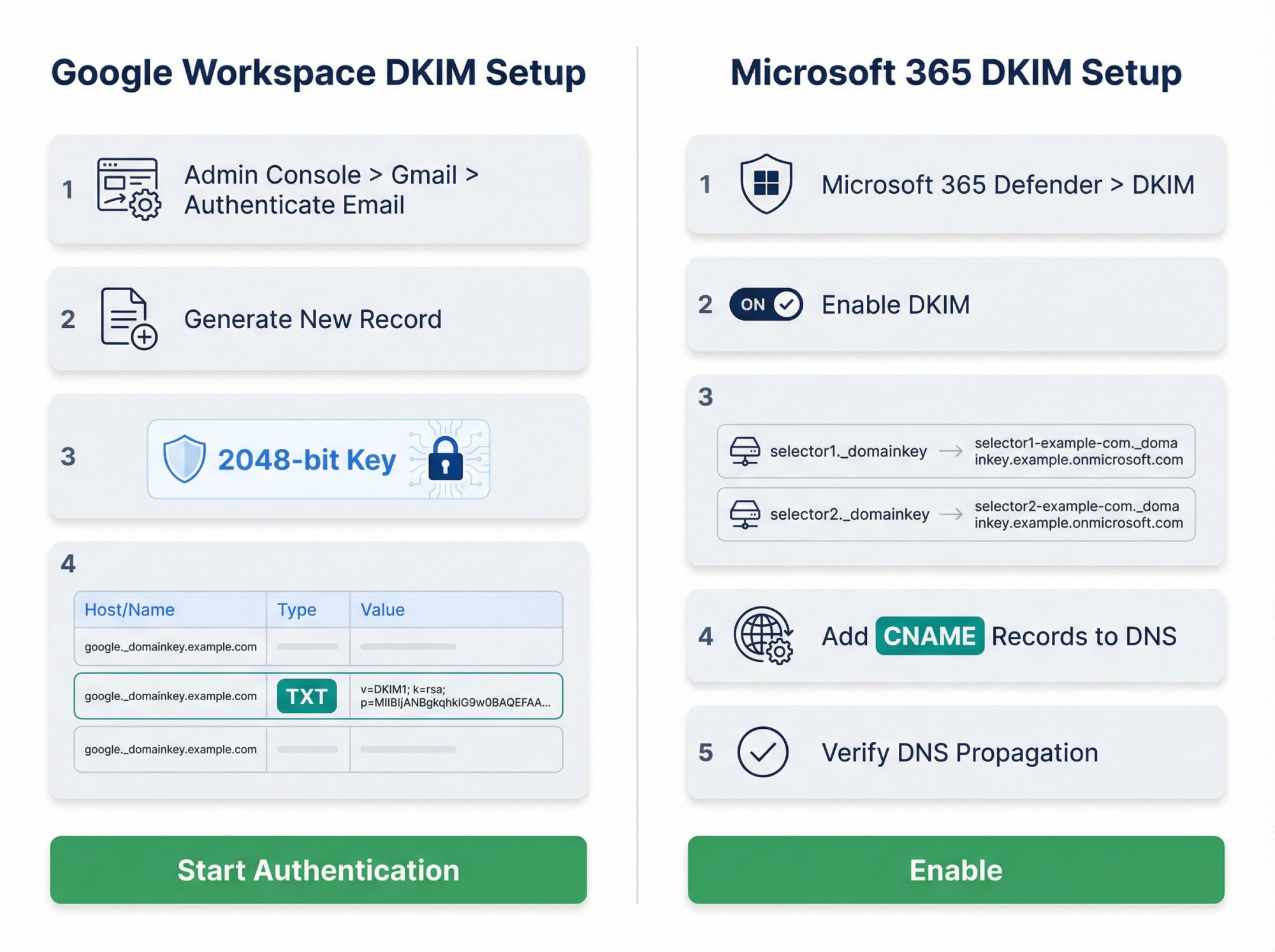
DKIM Setup for Google Workspace
Go to Admin Console > Apps > Google Workspace > Gmail > Authenticate Email
Select your domain and click "Generate new record"
Choose 2048-bit key length (not 1024-bit). This is more secure and recommended by Google
Copy the selector name and the long TXT record value Google provides
Now add this to DNS:
Field | Value |
|---|---|
Host/Name | {selector}._domainkey (example: google._domainkey) |
Type | TXT |
Value | The long string starting with v=DKIM1; k=rsa; p=... |
Save the DNS record, then return to Google Admin and click "Start Authentication."
DKIM Setup for Microsoft 365
Microsoft uses CNAME records instead of TXT for DKIM:
Go to Microsoft 365 Defender > Policies > DKIM
Select your domain and choose "Enable DKIM"
Microsoft will show you two CNAME records to create:
• selector1._domainkey.yourdomain.com
• selector2._domainkey.yourdomain.com
Add both CNAME records to your DNS as shown
Return to the Microsoft portal and click "Enable"
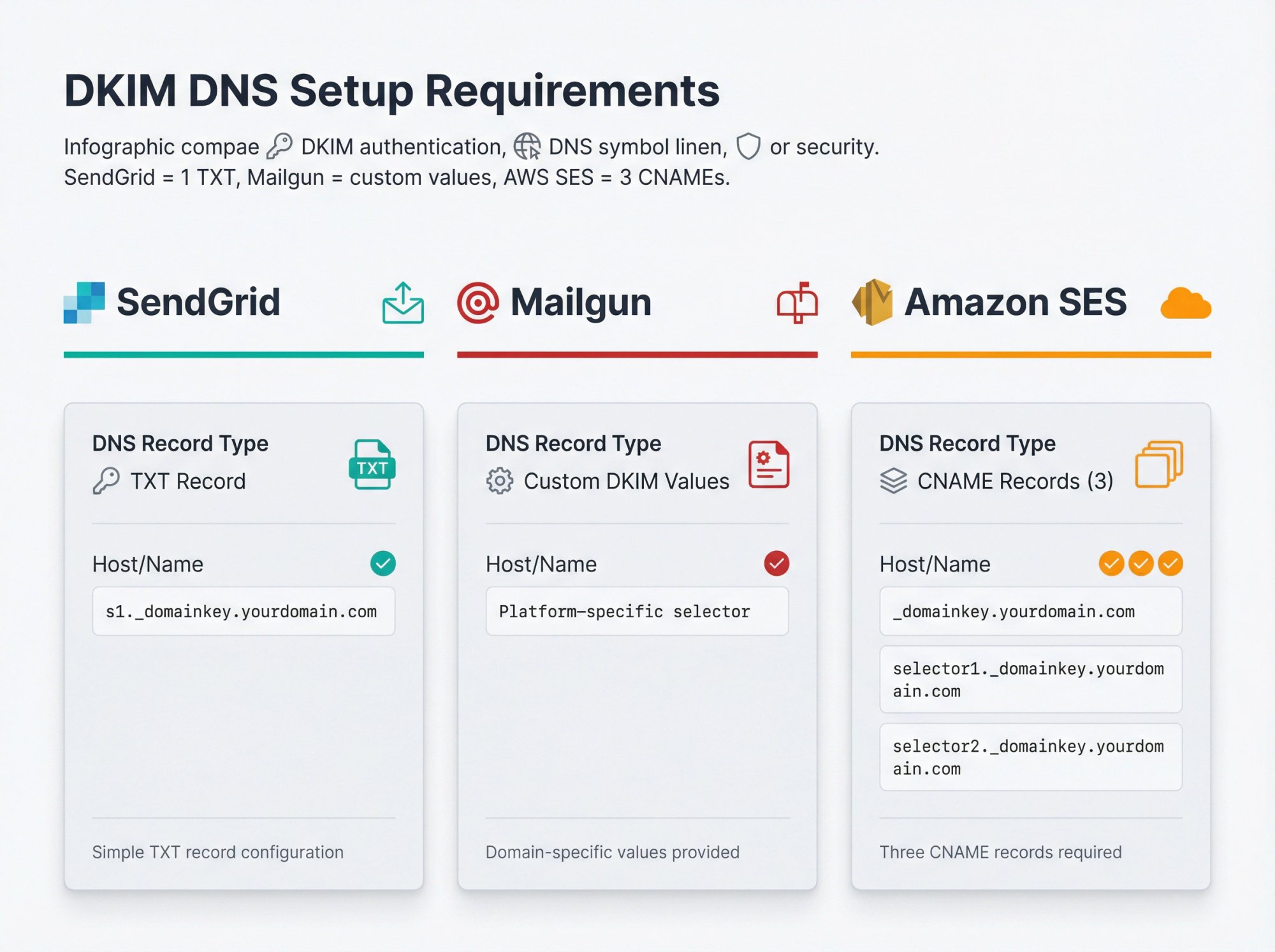
DKIM Setup for Email Service Providers
Most cold email platforms and ESPs provide DKIM setup instructions in their settings:
SendGrid: Requires a TXT record like s1._domainkey.yourdomain.com
Mailgun: Provides specific DKIM values for your domain
Amazon SES: Gives you three CNAME records to add
Each platform is different, but they'll all give you the exact DNS entries needed.
How to Test Your DKIM Configuration
Send an email from your domain to Gmail. Click "Show Original" and look for "DKIM: PASS" with your domain and selector listed.
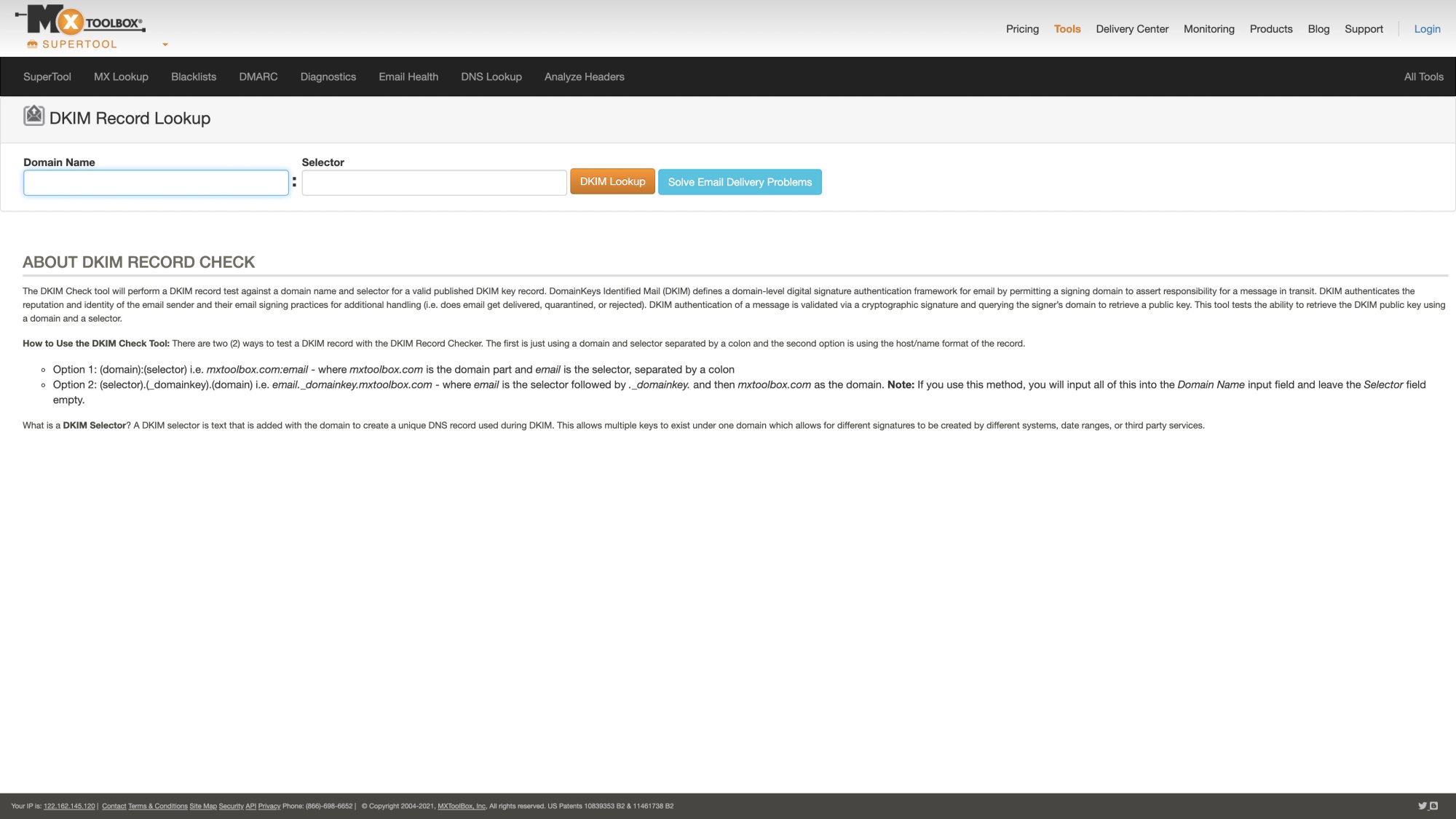
You can also use MXToolbox's DKIM lookup tool to verify the public key is correctly published.
DKIM Best Practices for Cold Email
Always use 2048-bit keys. They're more secure than 1024-bit and becoming the industry standard. Some providers (like Yahoo) may treat 1024-bit keys as less secure.
Each domain needs its own DKIM. If you send from multiple domains or subdomains, configure DKIM for each one separately.
Keep your private key secure. The private key that signs your emails should never be exposed. Let your email service manage it for you.
Test after any changes. Anytime you modify DKIM settings, send test emails to multiple providers (Gmail, Outlook, Yahoo) and verify they all pass.
How to Set Up DMARC for Cold Email
DMARC is where everything comes together. It verifies that SPF or DKIM passed AND that the domain they authenticated matches your From address. Plus, it tells receivers what to do when authentication fails.
Start DMARC with Monitoring Mode
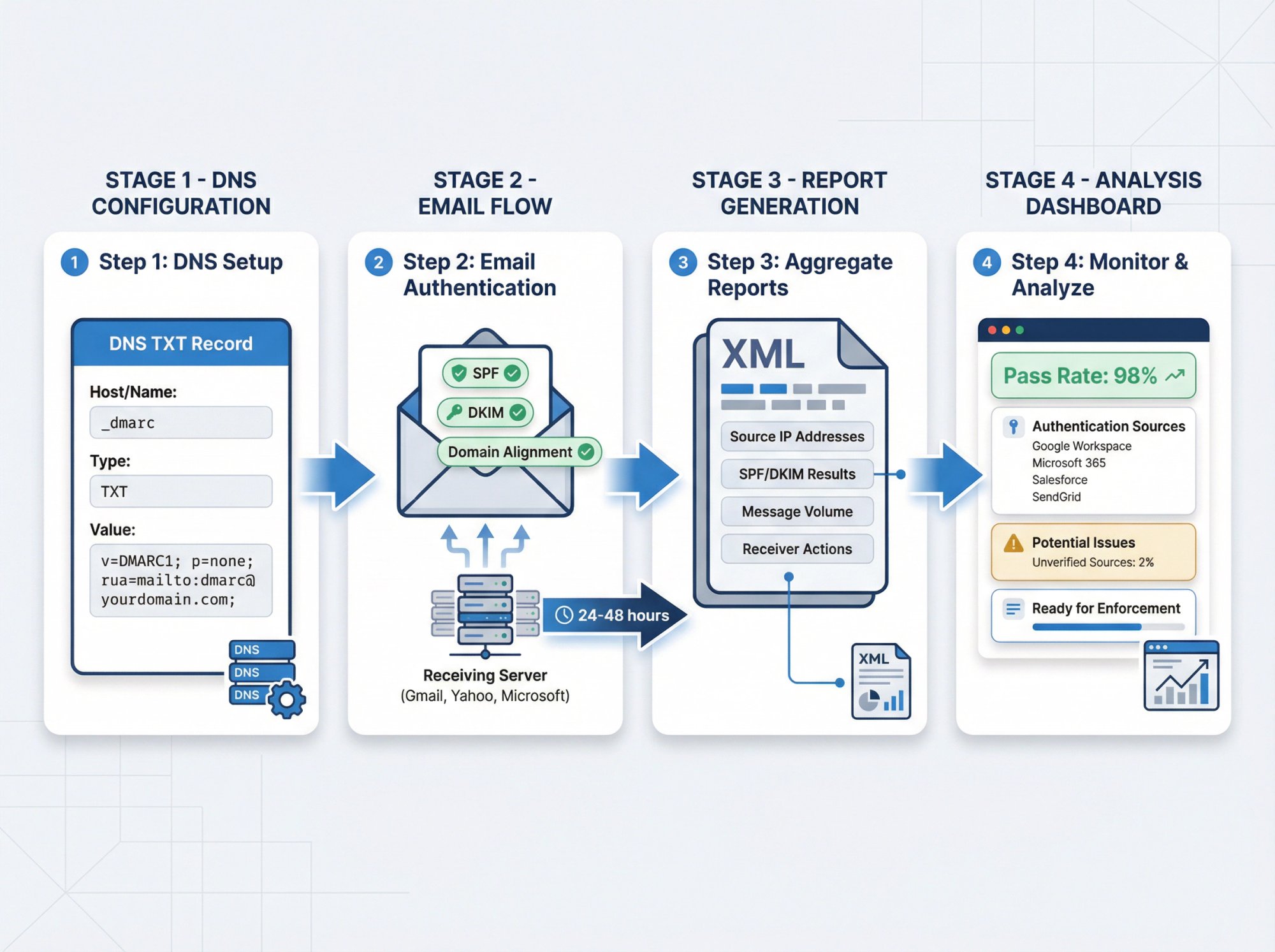
Your first DMARC record should look like this:
Field | Value |
|---|---|
Host/Name | _dmarc |
Type | TXT |
Value |
|
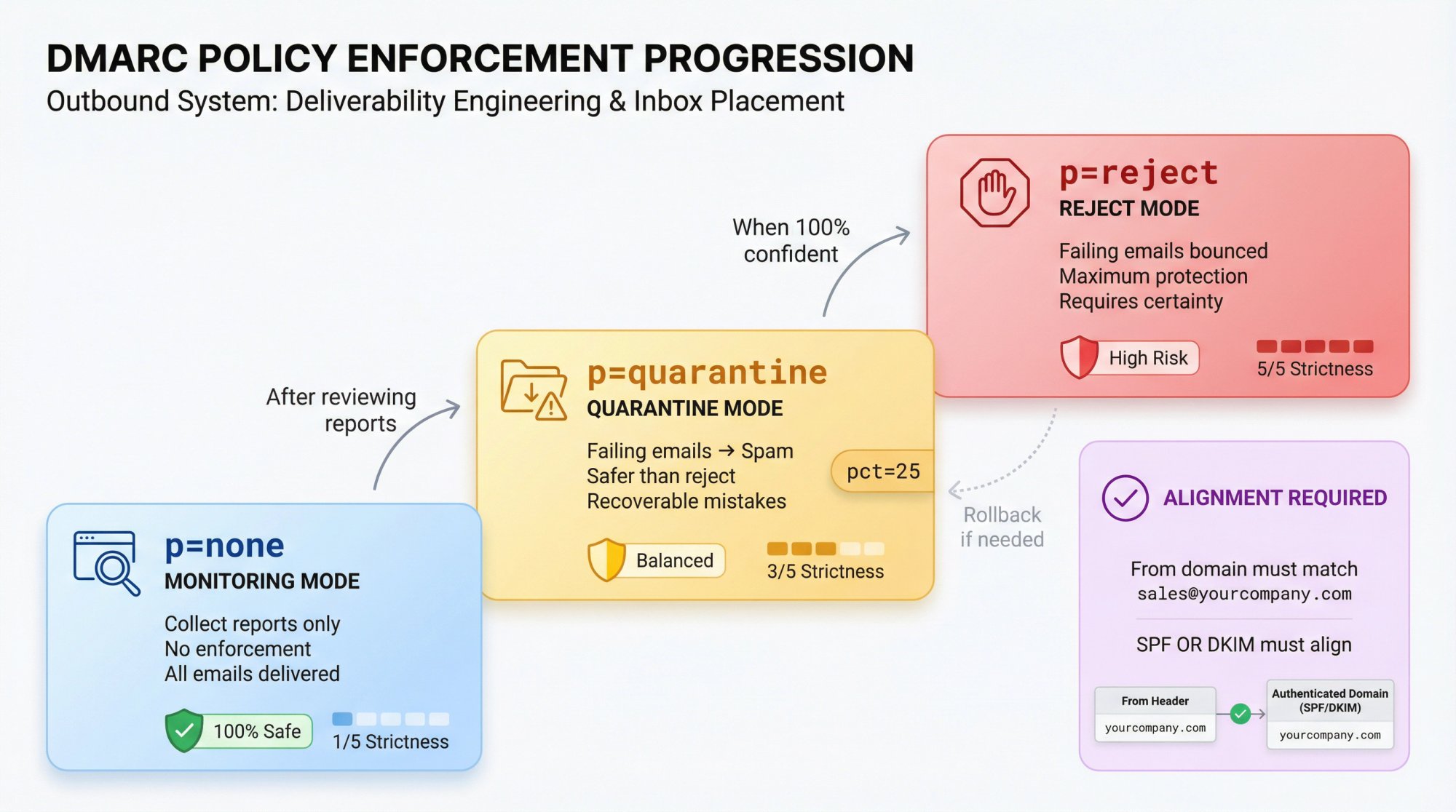
This tells receivers: "Don't reject or quarantine failures yet, just send me reports about what's happening."
Make sure the email address in rua= is real and can receive mail. This is where you'll get aggregate reports about authentication results.
How to Read DMARC Reports
Within 24-48 hours of adding DMARC, you'll start receiving XML reports from major email providers. These reports show:
• Which IP addresses sent emails claiming to be from your domain
• Whether those emails passed SPF and DKIM
• How many messages were sent
• What the receivers did with them
The reports help you identify:
Legitimate services you forgot to include in SPF
Misconfigured DKIM settings
Potential spoofing attacks on your domain
Many people use DMARC analysis tools to parse these XML reports into readable dashboards. Otherwise, you're reading raw XML (not fun).
How to Enforce DMARC Policy
Once you've confirmed that all legitimate email passes SPF or DKIM, you can enforce your policy.
Option 1: Quarantine (p=quarantine)
This tells receivers to send failing emails to spam. It's safer than reject because if you missed something, it won't be lost forever.
Option 2: Reject (p=reject)
This is the strictest policy. Receivers will bounce emails that fail authentication. Only use this when you're absolutely certain your authentication is airtight.
You can also use the pct= tag to roll out enforcement gradually. For example, p=quarantine; pct=25 would quarantine 25% of failing messages while you monitor the impact.
What Is DMARC Alignment
For DMARC to pass, it's not enough for SPF or DKIM to just pass. The domain that passed must match (or "align with") the domain in your From address.
Scenario | From Address | Authentication | Result |
|---|---|---|---|
Aligned | DKIM signature domain: yourcompany.com | DMARC PASS | |
Misaligned | SPF passes for: someplatform.com, DKIM fails | DMARC FAIL |
This is why it's crucial to use your own domain for cold email. If you send from a platform's shared domain, you can't authenticate properly.
Why You Should Monitor DMARC After Enforcement
Even after setting p=quarantine or p=reject, continue reviewing your DMARC reports. They'll help you catch:
→ New services someone added without updating SPF
→ Changes to third-party sending platforms
→ Spoofing attempts you can report to authorities
Complete Email Authentication Checklist
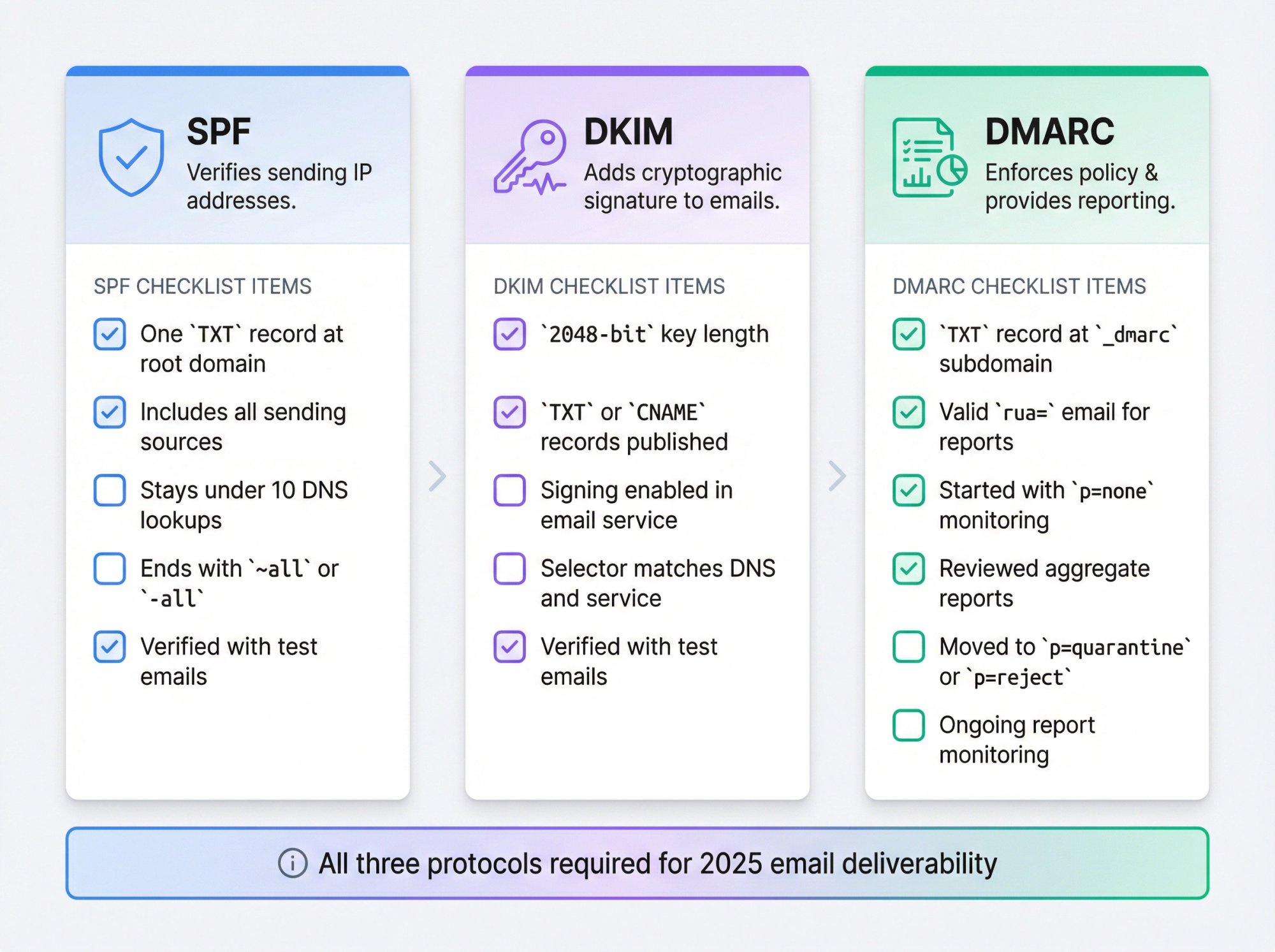
Here's what you need for full email authentication:
SPF Requirements:
☐ One TXT record at the root domain
☐ Includes all legitimate sending sources
☐ Stays under 10 DNS lookups
☐ Ends with ~all or -all
☐ Verified with test emails
DKIM Requirements:
☐ 2048-bit key length
☐ TXT or CNAME records published in DNS
☐ Signing enabled in your email service
☐ Selector matches between DNS and service
☐ Verified with test emails
DMARC Requirements:
☐ TXT record at _dmarc subdomain
☐ Valid rua= email address for reports
☐ Started with p=none for monitoring
☐ Reviewed aggregate reports
☐ Moved to p=quarantine or p=reject when ready
☐ Ongoing monitoring of reports
Cold Email Authentication Best Practices
Why You Should Use a Dedicated Domain
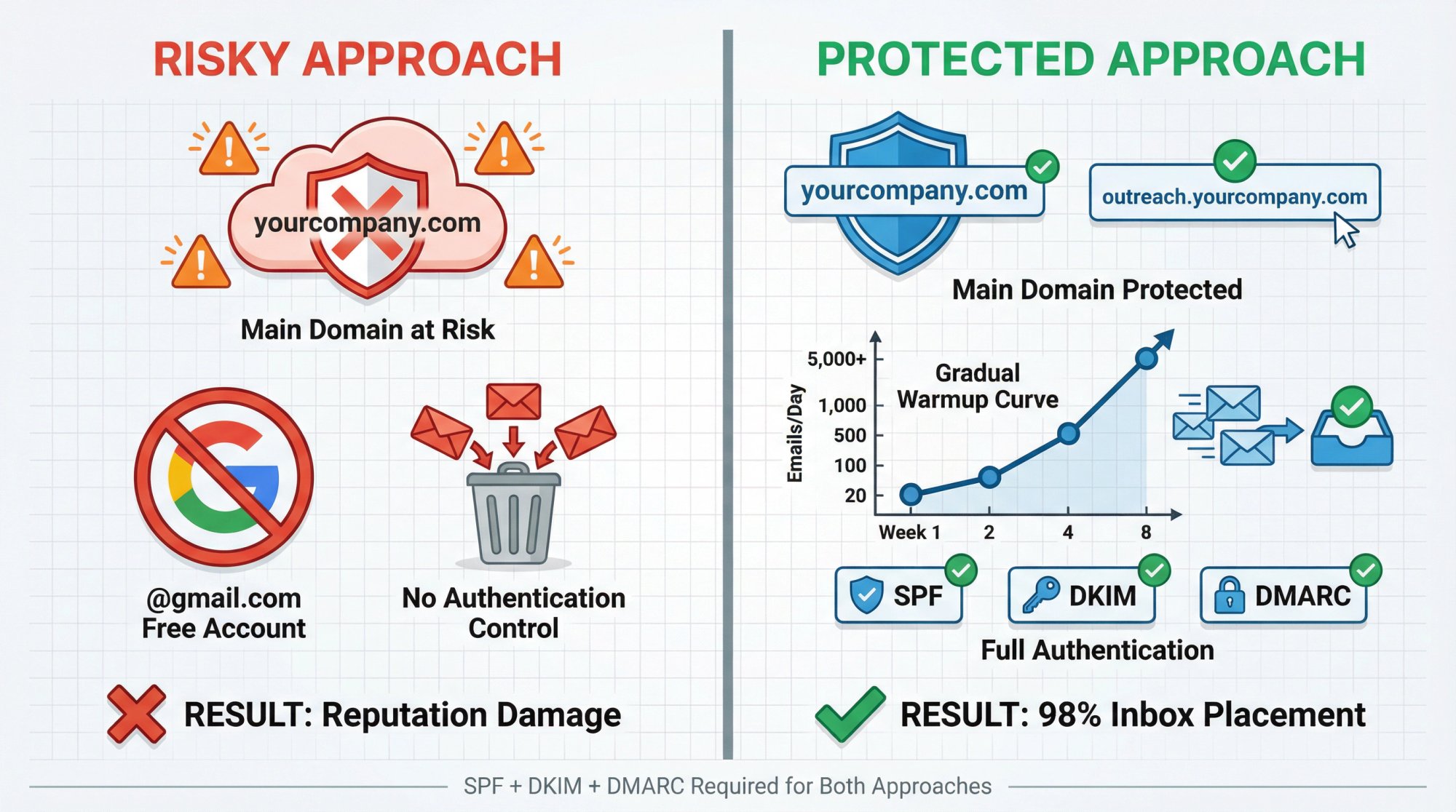
Many cold email experts recommend using a separate domain for outreach. Instead of sending from yourcompany.com, send from:
yourcompany.co
outreach.yourcompany.com
mail.yourcompany.com
This protects your main domain's reputation. If something goes wrong with cold email (spam complaints, temporary blacklisting), your core business email stays clean.
Important: You still need to fully authenticate this separate domain with SPF, DKIM, and DMARC. Don't skip authentication just because it's not your primary domain.
How to Warm Up Your Email Domain
Even with perfect authentication, sending 10,000 cold emails from a brand-new domain will trigger spam filters. You need to build sending reputation gradually:
• Start with 20-50 emails per day
• Increase by 20-30% weekly
• Engage with inboxes (replies help reputation)
• Keep spam complaints under 0.3%
At Outbound System, we handle domain warming as part of our setup. We gradually ramp up volume across our private Microsoft infrastructure, monitoring deliverability metrics to make sure your emails reach inboxes from day one.
Why Free Email Accounts Don't Work for Cold Email
Never send cold email from @gmail.com or @yahoo.com accounts. You can't properly authenticate free accounts (you don't control the domain), and providers rate-limit consumer accounts heavily.
Use your own domain. It looks professional and gives you full authentication control.
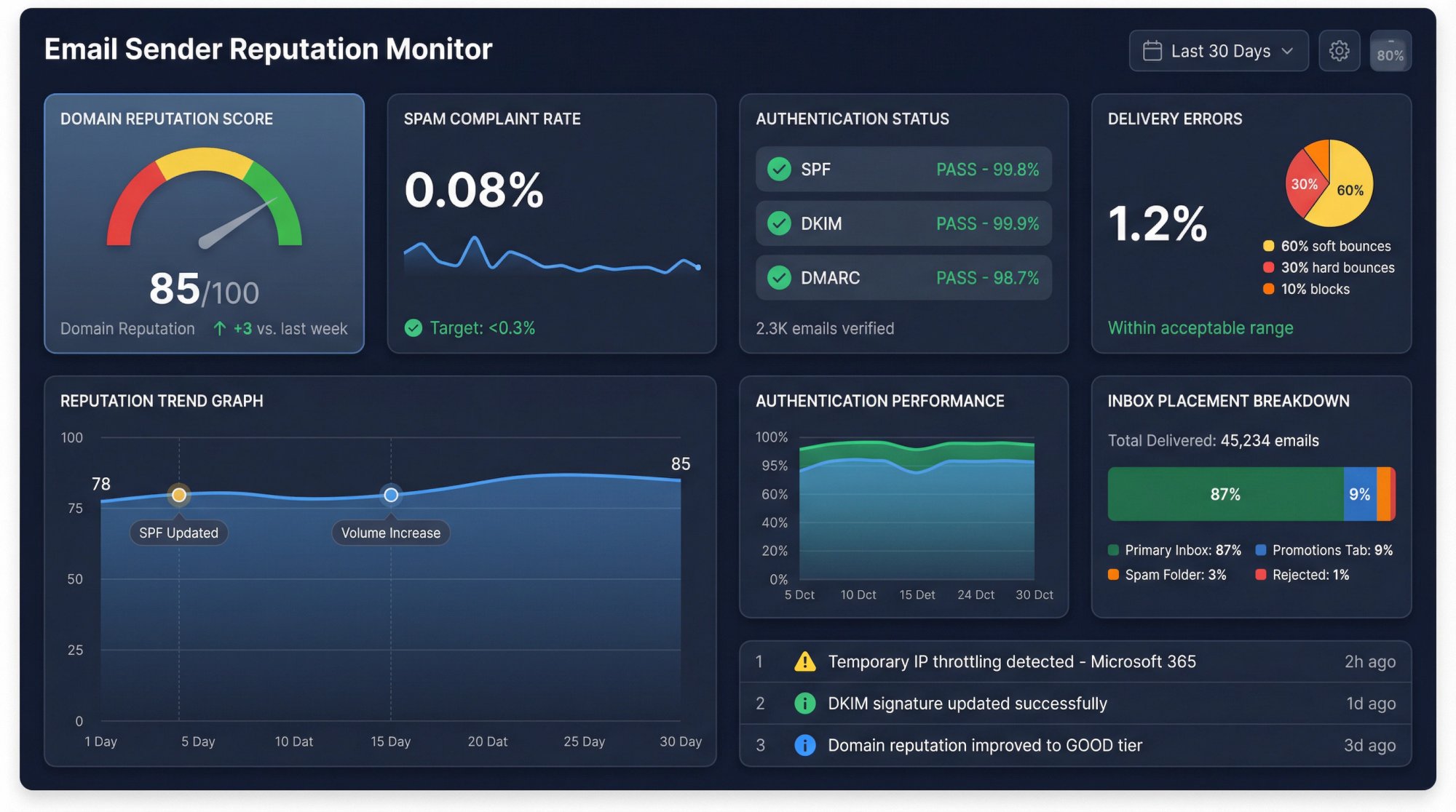
How to Monitor Your Email Sender Reputation
Google Postmaster Tools and Microsoft SNDS give you insight into how these providers view your domain:
IP/domain reputation scores
Spam complaint rates
Authentication failures
Delivery errors
Check these dashboards regularly, especially after making changes to your authentication setup. Your email sender reputation directly impacts inbox placement.
When to Set Up Reverse DNS
If you manage your own mail server or use dedicated IPs, make sure each IP has a valid PTR record pointing to your domain. Most spam filters check for matching forward and reverse DNS.
If you use a third-party ESP or cold email platform, they typically handle PTR records for their infrastructure.
Email Authentication Mistakes That Kill Deliverability
Mistake | Impact | Solution |
|---|---|---|
Forgetting about forwarders and mailing lists | SPF can break when emails are forwarded | Use both SPF and DKIM (DKIM usually survives forwarding) |
Not testing before enforcement | Legitimate emails might bounce | Always start DMARC with p=none and review reports for 2-4 weeks |
Exceeding SPF's 10-lookup limit | SPF fails automatically | Use tools like DMARCian's SPF Surveyor to count lookups |
Using 1024-bit DKIM keys | Less secure, may be deprecated soon | Always choose 2048-bit when available |
Ignoring DMARC reports | Miss authentication problems before they become disasters | Review reports at least monthly |
When someone forwards your email or a mailing list redistributes it, SPF can break (because it's coming from a different IP). DKIM usually survives forwarding, which is why you need both. DMARC helps handle this with ARC (Authenticated Received Chain) support.
This is extremely common when you use multiple email services. Tools like DMARCian's SPF Surveyor can count your lookups and warn you if you're close to the limit.
How Outbound System Handles Authentication
We've sent over 52 million cold emails for 600+ B2B companies, and authentication is the foundation of everything we do.
Here's our approach:
Private Microsoft Infrastructure: We use 350-700 Microsoft U.S. IP inboxes per client (depending on plan). Each inbox is properly authenticated with SPF, DKIM, and DMARC before sending begins.
9-Step Data Enrichment: Clean data prevents bounces, which protects your sender reputation. We verify every email through syntax checks, SMTP pings, historic bounce data, and engagement signals.
Gradual Warmup: We don't blast from cold domains. Every new inbox goes through a careful warmup process, building reputation over weeks before hitting target volume.
Ongoing Monitoring: We track deliverability metrics, spam complaint rates, and authentication results in real-time. If something breaks, we catch it before it impacts your cold email campaigns.
98% Inbox Placement: Our authentication and infrastructure approach consistently delivers 98% primary inbox placement, with 6-7% response rates across our client base.
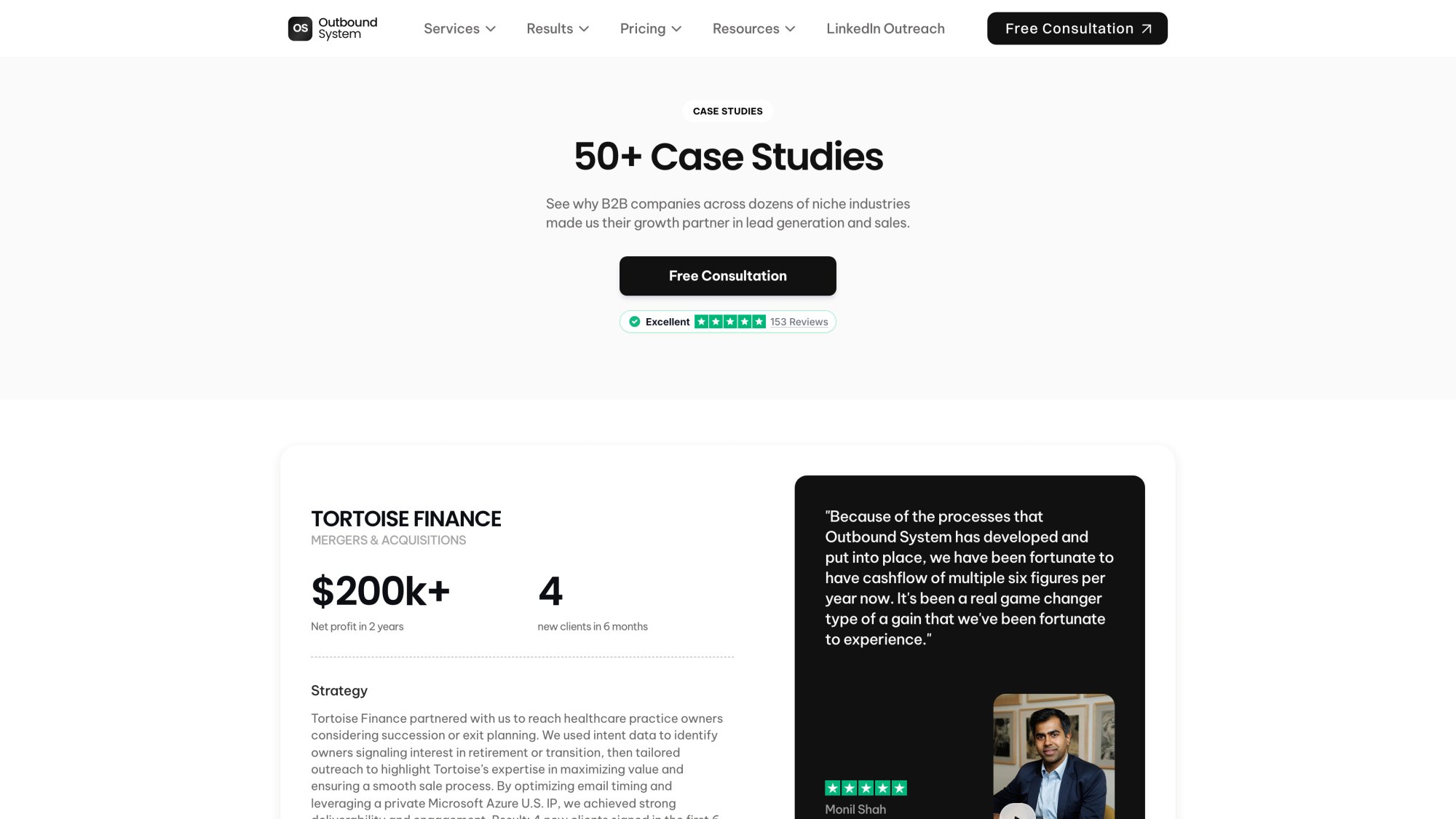
If you'd rather focus on writing great copy and closing deals instead of managing DNS records and authentication protocols, Outbound System handles the entire technical infrastructure for you. Starting at $499/month with no long-term contracts.
Why Authentication Alone Isn't Enough
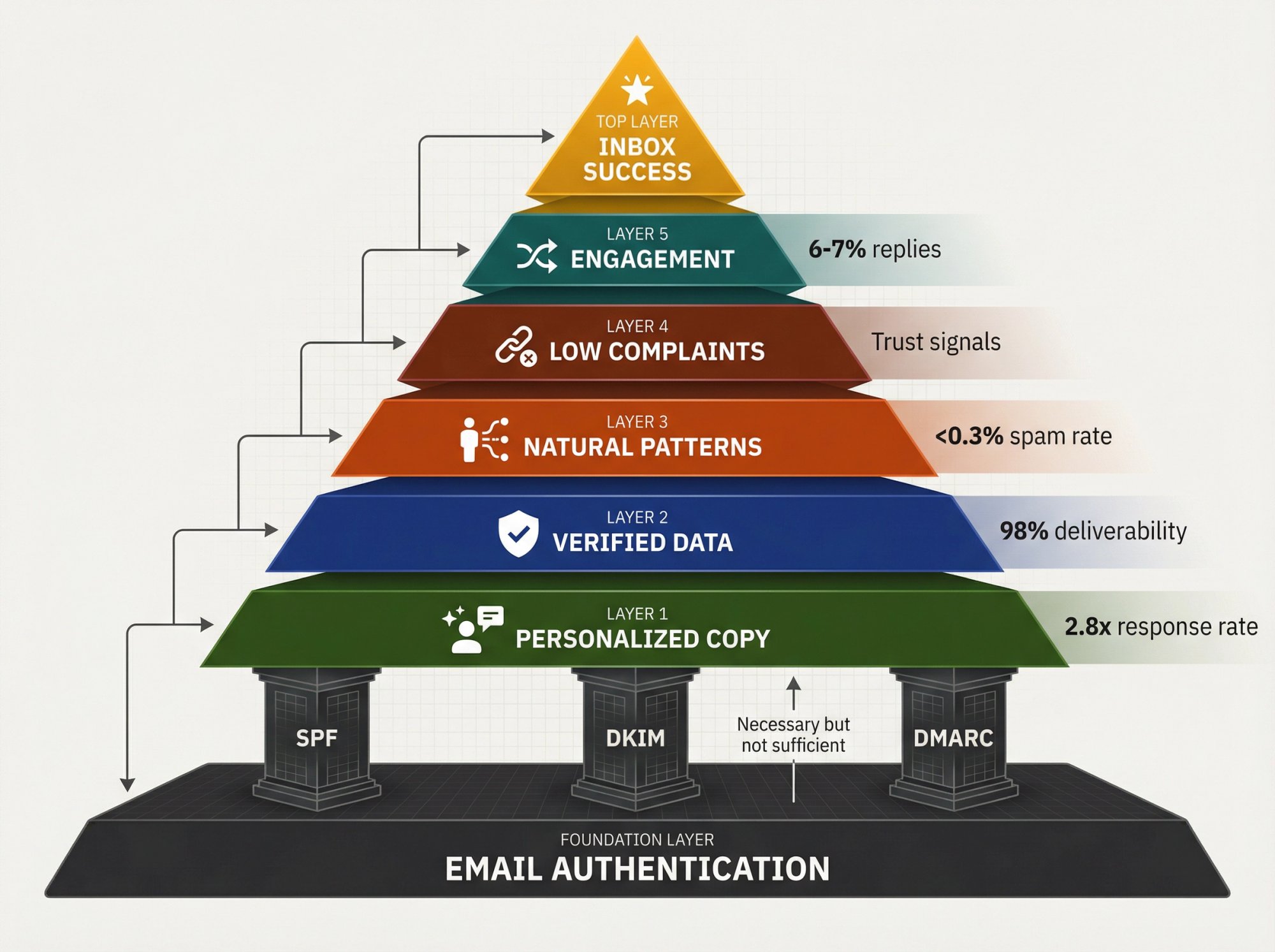
SPF, DKIM, and DMARC get your foot in the door. But they don't guarantee inbox placement by themselves.
You still need:
Clean, personalized copy. Generic templates trigger spam filters. AI personalization combined with human-written frameworks works better than either alone. Learn how to write sales emails that convert and see proven cold email templates.
High-quality prospect lists. Sending to invalid emails, spam traps, or purchased lists will tank your reputation fast. Triple-verify every address.
Natural sending patterns. Sending 5,000 emails in 10 minutes looks robotic. Distribute sends across the day and use multiple inboxes to mimic human behavior. Know how many cold emails you can send per day.
Low spam complaint rates. Gmail wants you under 0.3% spam complaints. Make unsubscribes easy and honor them immediately. Understanding email outreach compliance helps avoid violations.
Engagement signals. Replies, opens (when trackable), and forwards tell providers your emails are wanted. Target prospects likely to engage, not just anyone with an email address. Effective email outreach strategies drive better engagement.
Reality check: Authentication is necessary but not sufficient. You need the full package.
Email Authentication FAQ
Q: Do I need all three protocols, or can I just use one?
You need all three. SPF alone isn't enough because it doesn't check the From address. DKIM alone doesn't verify sending IPs. DMARC requires at least one of them to pass. Modern email providers expect all three to be configured for effective B2B lead generation.
Q: How long does DNS propagation take after I add these records?
Usually 5-30 minutes, but it can take up to 48 hours in rare cases. You can check propagation with tools like WhatsMyDNS.net to see if your records are visible globally.
Q: What happens if I set DMARC to p=reject and something breaks?
That's why you start with p=none and monitor reports first. If you jump straight to reject without testing, legitimate emails could bounce. Always validate your setup thoroughly before enforcing.
Q: Can I use one domain for authentication and send from another?
Not recommended. For DMARC to pass, the domain in your From address must align with the domain authenticated by SPF or DKIM. Using different domains will cause authentication failures. This is a critical part of prospecting email structure.
Q: Do I need to authenticate every subdomain separately?
Only if you send email from them. If you send from mail.yourcompany.com, that subdomain needs SPF and DKIM. DMARC on the parent domain (yourcompany.com) can cover subdomains unless you create subdomain-specific policies.
Q: How do I know if my authentication is working?
Send test emails to Gmail and check "Show Original" for SPF: PASS, DKIM: PASS, and DMARC: PASS. You can also use tools like Mail Tester for comprehensive authentication checks.
Q: Will authentication fix my spam folder problem overnight?
Not necessarily. Authentication is one factor in deliverability. You also need good content, clean lists, proper warmup, and positive engagement signals. But without authentication, you're fighting a losing battle.

Q: What's the difference between ~all and -all in SPF?
~all (soft fail) marks unauthorized senders as suspicious but still delivers the email. -all (hard fail) tells receivers to reject unauthorized senders outright. Start with ~all until you're confident your record is complete.
Q: Should I use p=quarantine or p=reject for DMARC?
Start with p=quarantine. It's safer because failing emails go to spam instead of bouncing. Once you've confirmed 100% of legitimate mail passes authentication, you can move to p=reject for maximum security. This is part of broader email list building strategies.
Q: How often should I review DMARC reports?
At minimum, monthly. During initial setup and after any changes, review them weekly. The reports will alert you to authentication issues before they tank your deliverability.
Why SPF DKIM DMARC Matter for Cold Email Success
SPF, DKIM, and DMARC aren't optional anymore. They're the price of admission for cold email in 2025.
Without them:
Gmail, Yahoo, and Microsoft will block or spam your messages
Your domain is vulnerable to spoofing and phishing
Your sender reputation suffers from the start
You're fighting deliverability with one hand tied behind your back
With proper authentication:
You prove you're a legitimate sender
Your emails pass the first layer of spam filtering
Your domain is protected from impersonation
You build a foundation for strong deliverability
The setup takes a few hours. The payoff lasts for years.
If you're sending cold email at scale and want expert infrastructure management, Outbound System handles authentication, warmup, deliverability monitoring, and everything else technical. We've sent 52M+ cold emails with 98% inbox placement because we obsess over the details you'd rather not deal with.
Or do it yourself. Either way, get it done. Your cold email success depends on it. Book a free consultation to see how we can handle your entire cold email infrastructure.