If you're comparing LinkedIn InMail vs Connection Request, you're not debating a feature preference.
You're trying to answer: "What's the fastest, safest, and most cost-effective way to start real conversations with my ideal prospects on LinkedIn without getting restricted or wasting time?"
This guide is your decision system. It includes the latest LinkedIn limits for 2026, current Sales Navigator pricing, how InMail credits actually work, and ready-to-use strategies proven to book qualified meetings. By the end, you'll know exactly when to send a connection invite and when to use InMail to maximize your reply rates while keeping your account safe.
What Is the Difference Between LinkedIn InMail and Connection Requests?
Connection Requests are how you earn a permissioned channel (1st-degree messaging access). InMail is how you rent attention to message someone you're not connected to, usually with credits and constraints. (LinkedIn Help Center)
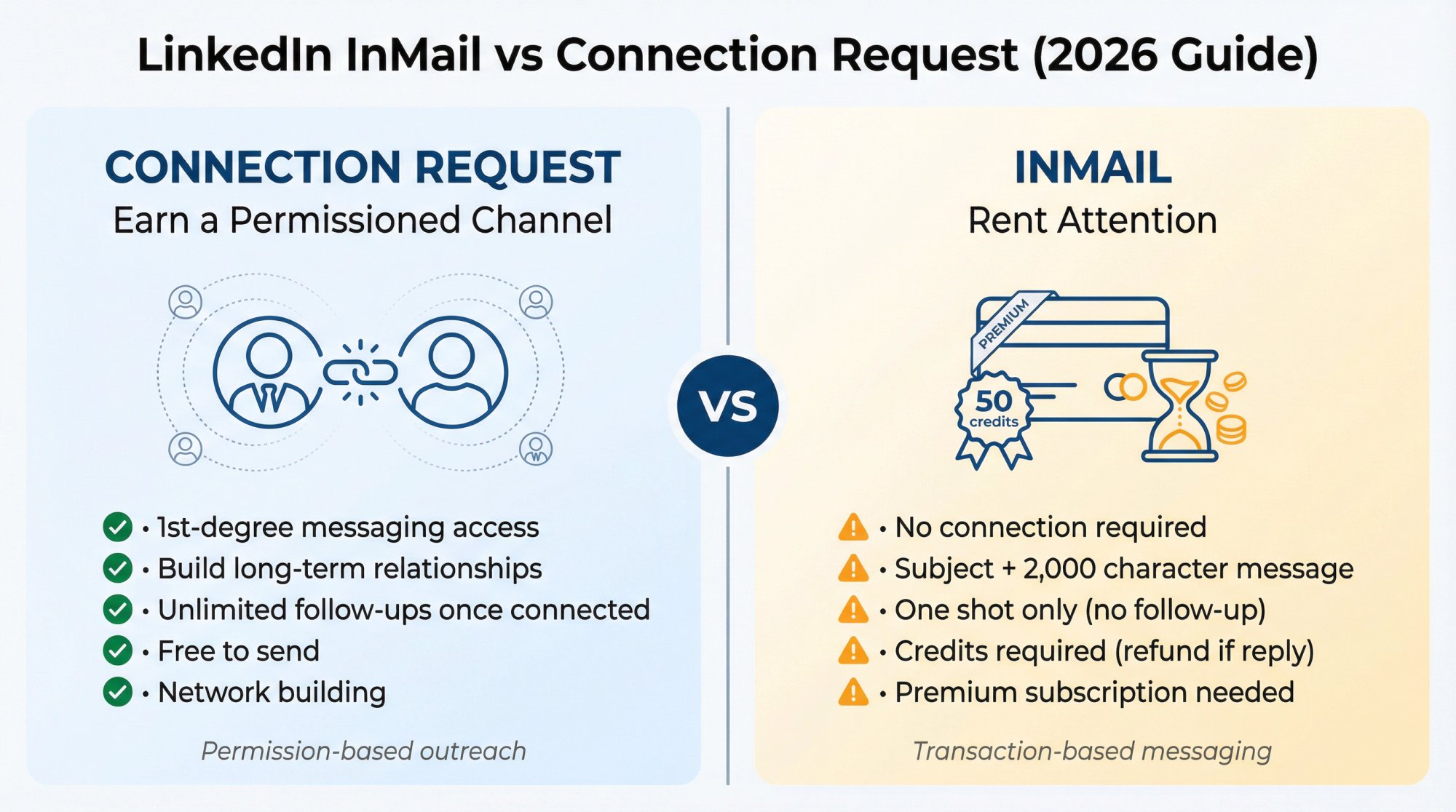
That framing alone will save you thousands of wasted sends.
How LinkedIn InMail, Open Profile, and Connection Request Notes Work
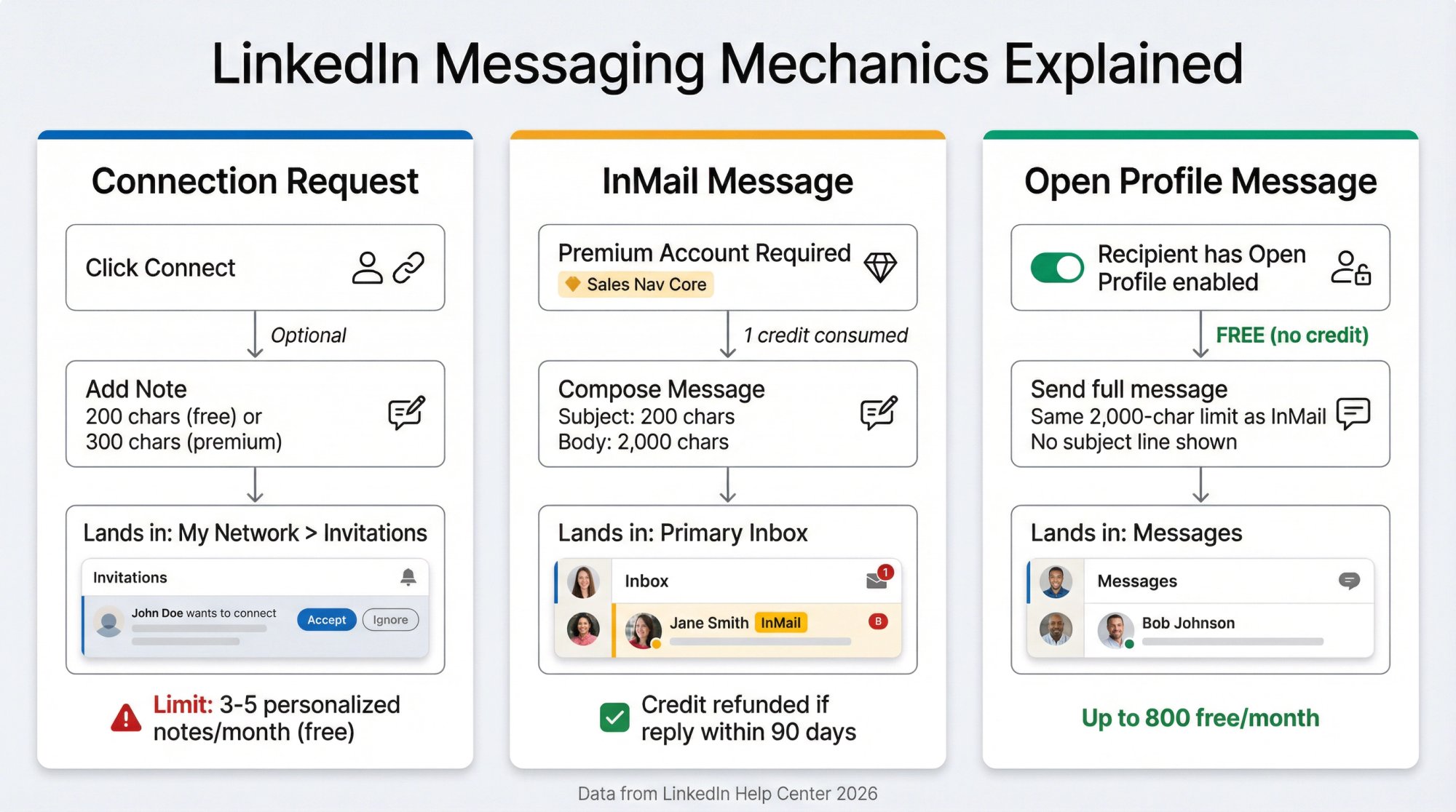
What Counts as a Connection Request?
A connection request is LinkedIn's standard invitation to connect. LinkedIn may restrict invitation sending if you send too many, get ignored frequently, get marked as spam, or trigger automation suspicion. (LinkedIn's invitation guidelines)
What's a "Connection Request Note" (Personalized Invitation)?
When you click Connect → Add a note, that note isn't the same as a normal DM. It's a tiny intro that appears with the invite, and it's heavily constrained.
Important 2026 update: LinkedIn now limits how many invitations you can personalize per month on some account types. Basic/free accounts can add a personalized message to up to three connection requests per month, with a 200 character limit. (LinkedIn's personalization limits)
But another LinkedIn help page still references five personalized messages per month for basic accounts. (LinkedIn messaging documentation)
The practical truth: Assume 3-5 personalized notes/month on basic accounts depending on LinkedIn's current rollout, A/B tests, region, and account history. Design your system so you don't depend on notes for volume. Premium accounts have "no limit" on personalized connection messages.
Understanding LinkedIn connection request limits is critical for scaling your outreach without triggering restrictions.
What Counts as InMail?
LinkedIn InMail lets you message a member you're not connected to. LinkedIn's Help Center describes it as a Premium feature, with a subject line up to 200 characters and a body up to 2,000 characters.
For a deeper dive into InMail mechanics, see our guide on what InMail means on LinkedIn.
What Is "Open Profile," and Why It Matters?
If the recipient has Open Profile enabled, you can message them for free (even if you're not connected). LinkedIn explicitly calls this out in its InMail instructions. (LinkedIn Premium messaging)
This is one of the biggest leverage points in LinkedIn outbound because it changes the cost structure completely. We'll show you how to exploit this later.
LinkedIn Limits in 2026: What You Need to Know
1) Personalized Connection Request Notes Are Now Capped for Many Users
As of late 2025/early 2026, LinkedIn caps personalized connection request notes differently based on account type:
Account Type | Personalized Messages/Month | Character Limit |
|---|---|---|
Basic/Free | 3-5 messages (varies by rollout) | 200 characters |
Premium | No limit (unlimited) | 300 characters |
If you're running serious outbound on a free account, you're basically capped at 3-5 meaningful connection notes monthly. That's not a prospecting system. That's hoping.
2) LinkedIn Doesn't Publish a Universal "X Invites Per Week" Number
What LinkedIn does publish: you can be restricted when you send many invites quickly, if many invites are ignored/pending/marked as spam, or if LinkedIn suspects automation.
So any article claiming a fixed number (like "100/week") is at best an observed average, not a policy guarantee. Most experienced users report that sending around 100 connection requests per week is the safe zone. Push beyond that, and you're gambling with account restrictions.
3) InMail Credits Have Strict Rules (And Refunds Are Real)
LinkedIn's documentation is unusually clear here:
Plan | InMail Credits/Month | Max Accumulation | Credit Expiration | Can Buy More? |
|---|---|---|---|---|
Sales Navigator Core | 50 credits (source) | 150 credits max | 90 days | No |
Premium Career | 5 credits | N/A | 90 days | No |
Premium Business | 15 credits | N/A | 90 days | No |
Recruiter Lite | 30 credits | N/A | 90 days | No |
Credit Refunds: You get a credit back for every InMail that receives a response within 90 days (including auto replies). (LinkedIn InMail credit policy)
Key nuance: Sales Navigator explicitly describes refunds for responses within 90 days. Multiple InMails to the same person consume additional credits. (Sales Navigator InMail details)
Learn more about Sales Navigator features and how to maximize its capabilities for B2B sales.
Critical insight: If you're serious about LinkedIn outbound at scale, relying solely on InMail credits is like trying to fill a pipeline with a teaspoon. You need infrastructure.
LinkedIn InMail vs Connection Request: Complete Comparison
Let's break down the tactical differences that impact your outreach ROI:
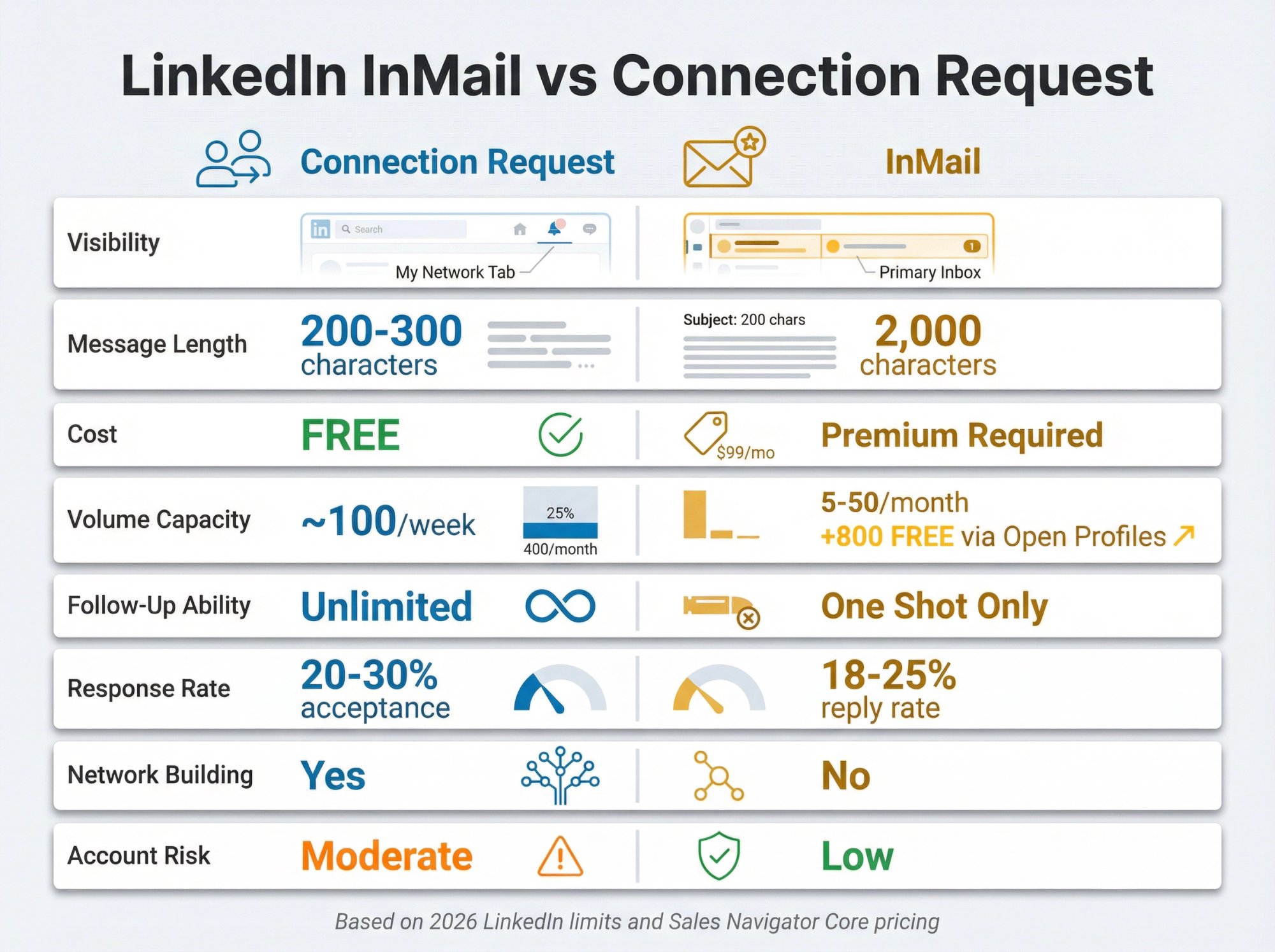
Factor | Connection Request | InMail |
|---|---|---|
Visibility | Sits in "My Network > Invitations" tab (low visibility) | Lands in primary LinkedIn inbox with "InMail" label (high visibility) |
Message Length | 200-300 characters (note only) | Subject line (200 chars) + body (2,000 chars) |
Cost | Free (no premium required) | Requires Premium subscription |
Volume Capacity | ~100 per week (~400/month) | 5-50 per month depending on plan (up to 800 free via Open Profiles) |
Follow-Up Ability | Unlimited once connected | One shot only (cannot follow up unless they reply) |
Response Rate | 20-30% acceptance rate (when personalized) | 18-25% reply rate (industry average) |
Network Building | Yes (becomes 1st-degree connection) | No (no connection unless they accept later) |
Account Risk | Moderate (spam reports hurt acceptance rate) | Low (InMail is expected premium feature) |
When Connection Requests Win
① Building Long-Term Pipeline
If you're nurturing prospects over multiple touchpoints (B2B prospects often need ~8 touchpoints to convert), connection requests let you stay on their radar. Once they accept, they see your posts and updates, creating passive engagement opportunities.
Learn effective B2B lead nurturing strategies to maximize the value of accepted connections.
② Budget Constraints
You don't need a paid account to send connection requests. For bootstrapped companies or individual reps without Sales Navigator budgets, connection requests are the only scalable option.
③ Active LinkedIn Users
If the prospect posts regularly on LinkedIn, they're likely checking their invitations tab. A personalized connection request from someone in their industry feels natural and non-threatening.
When InMail Wins
① High-Value, Time-Sensitive Outreach
You need to reach a C-level executive now about a relevant pain point. An InMail lands in their primary inbox with an email notification. A connection request might sit ignored for weeks.
② You've Hit the Weekly Connection Cap
You've sent 100 connection requests this week. You can't send more invites, but you still have 40 InMail credits. InMail runs on a separate track from connection limits.
③ Open Profile Prospects
If you see that "Open Profile – Free to Message" indicator, use it. That's a free InMail where you can send a full message without burning a credit. You can send up to 800 free InMails per month to Open Profiles without touching your credit allotment.
④ Connection Request Ignored
You sent an invite two weeks ago. No response. A polite InMail referencing your connection attempt can sometimes break through: "I reached out to connect last week because [specific reason]. Figured I'd try messaging directly..."
What Does LinkedIn InMail Really Cost in 2026?
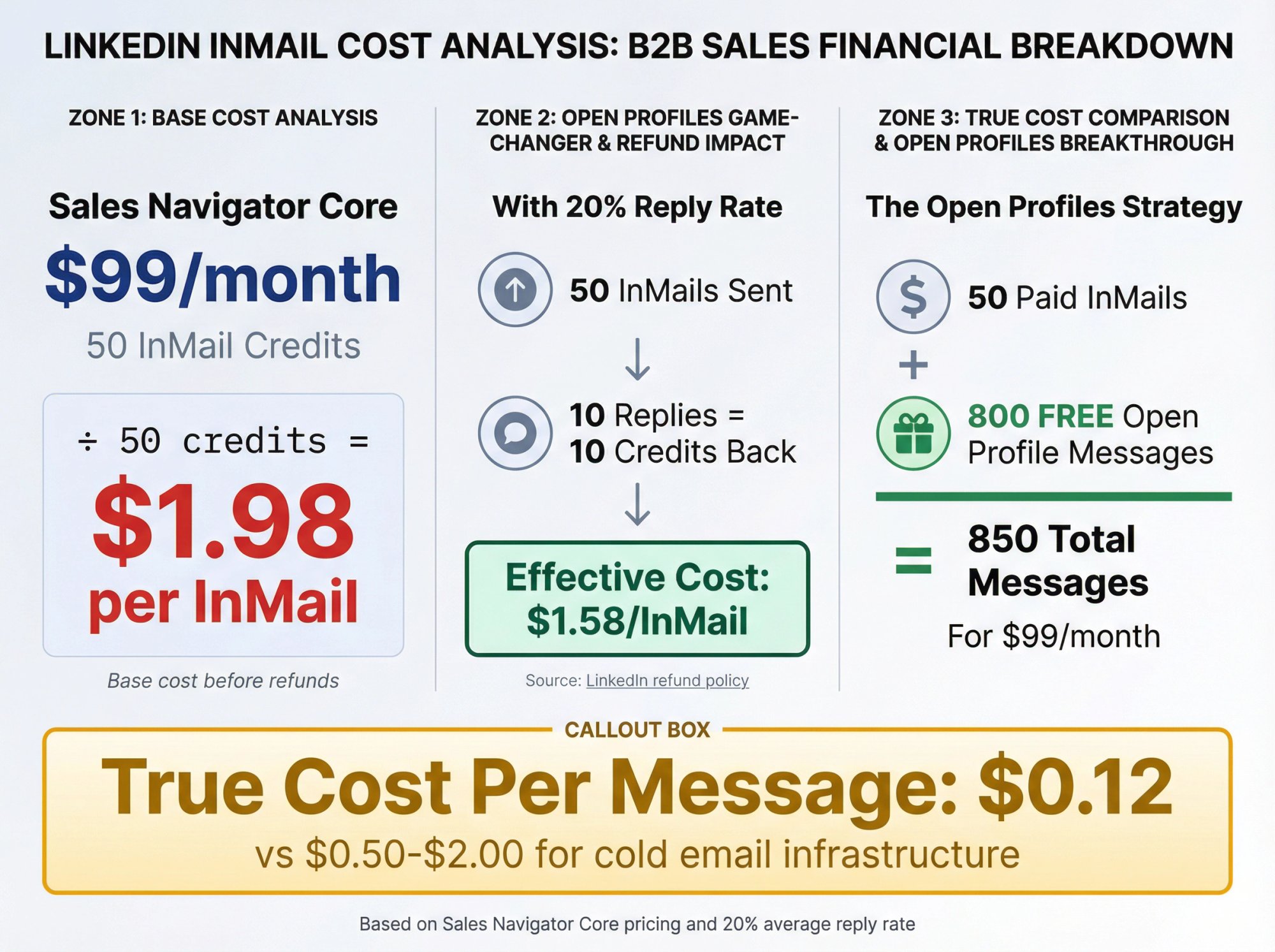
Let's do the economics.
Sales Navigator Core: $99/month (typical price)
50 InMail credits/month = $1.98 per InMail
But wait.
If you get a response within 90 days, you get the credit back. (LinkedIn refund policy)
So if your reply rate is 20% (decent for targeted outreach), 20% of your InMails are effectively free.
Effective cost per InMail: ~$1.58 (factoring in 20% refund rate)
Now add Open Profiles:
If you leverage the 800 free Open Profile messages per month, you're sending:
50 paid InMails
800 free Open Profile messages
= 850 total premium messages/month for $99
True cost per message: $0.12
That's cheaper than most cold email setups when you factor in domain costs, inbox infrastructure, and data enrichment.
But the catch: You still need the time to research, personalize, and send 850 messages monthly. That's where agencies like Outbound System come in. We manage the entire workflow (profile optimization, targeting, message sequencing, follow-ups, meeting scheduling) so you only focus on closing deals, not hunting for Open Profiles at 11 PM.
When Should You Use LinkedIn InMail? (And When to Avoid It)
✅ Use InMail When: | ❌ Don't Use InMail When: |
|---|---|
The prospect has an Open Profile (always check first - it's free) | The person would likely accept a connection request (same industry, shared connections) |
You need immediate visibility (time-sensitive opportunities, urgent problem-solving) | Your message is generic or templated (wasting money on low-quality outreach) |
The prospect is unlikely to accept random connections (C-suite, highly sought-after consultants, 500+ connections) | You need multiple follow-ups (InMail is one shot only - can't follow up unless they reply) |
You've already tried a connection request (pending 2+ weeks or ignored) | You don't have Sales Navigator or Premium (only 5 credits/month can't run meaningful volume) |
You have a genuinely relevant, personalized message (specific value proposition with research) |
When Should You Use LinkedIn Connection Requests?
✅ Use Connection Requests When:
→ Building Your Network for Long-Term Pipeline
Accepted connections become part of your network forever. They see your posts, you can message them anytime, and you can nurture them over multiple touchpoints.
→ The Prospect Is Active on LinkedIn
If they post regularly, comment on others' posts, or share content, they're checking LinkedIn frequently. They'll see your invite.
→ You Share Mutual Connections or Groups
LinkedIn shows shared connections and groups in the invitation preview. If you have 5+ mutual connections, your acceptance rate jumps significantly.
→ You're Operating on a Budget
Connection requests are free. If you can't afford Sales Navigator ($99/month) or Premium ($29-$60/month), connection requests are your only scalable option.
→ You Want to Send Follow-Up Messages Later
Once connected, you can message them as many times as needed (within reason). This is crucial for complex B2B sales cycles that require multiple touches.
🚨 How to Avoid LinkedIn Restrictions
LinkedIn doesn't publish exact thresholds, but experienced outbound teams have learned some patterns:
① Keep Your Acceptance Rate Above 20-30%
If too many people click "Ignore" (especially "I don't know this person"), LinkedIn restricts your ability to send invites. (LinkedIn's invitation policy)
Solution: Only send connection requests to people who are likely to accept (shared connections, same industry, engaged LinkedIn users).
② Stay Under 100 Connection Requests Per Week
The unofficial safe zone is ~100 per week (~400/month). Push beyond this consistently, and LinkedIn may flag your account.
Solution: If you need higher volume, add InMail, cold email outreach, or cold calling to your mix. Don't rely on connection requests alone.
③ Personalize Your Invites (When Possible)
Personalized connection requests have 20-25% higher acceptance rates than generic invites.
Solution: If you're on a Premium account (unlimited personalized notes), always add a note. If you're on a free account (3-5 notes/month), save them for your highest-priority prospects.
④ Don't Use Aggressive Automation Bots
LinkedIn actively detects and bans automation tools that violate their terms. Using a Chrome extension that sends 500 invites per day will get you restricted.
Solution: Use LinkedIn-approved tools (like Outbound System's LinkedIn service, which manages 600+ profiles safely with human-like pacing and throttling) or send invites manually.
Learn more about safe LinkedIn automation tools that won't get your account banned.
⑤ Withdraw Old Pending Invites
LinkedIn may force you to withdraw pending invites if you accumulate too many (typically 3,000+ pending). A high pending-to-accepted ratio signals poor targeting.
Solution: Every 2-3 months, go to "My Network > Manage Invitations" and withdraw invites that have been pending 30+ days.
3 LinkedIn Outreach Sequences That Book Meetings
At Outbound System, we've managed 600+ LinkedIn profiles and generated 127,000+ leads across our client base. These three sequences consistently book qualified meetings:
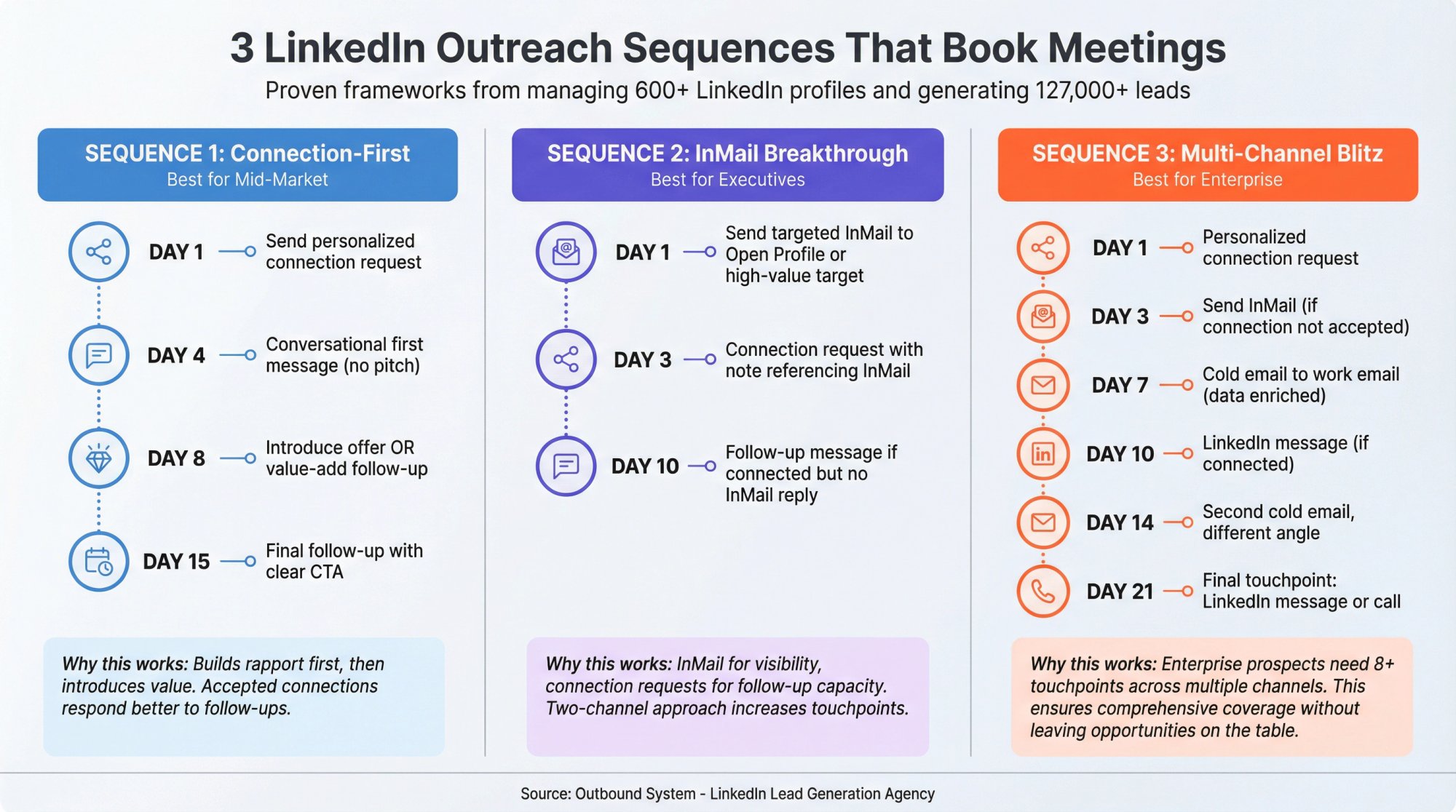
Sequence 1: The Connection-First Approach (Best for Mid-Market)
Day 1: Send personalized connection request with a note (if Premium) or blank invite (if free account).
Note template: "[First name], saw you're leading [department] at [company]. We help [similar companies] solve [specific problem]. Worth connecting?"
Day 4: If accepted, send a conversational first message. Don't pitch immediately.
Message: "Thanks for connecting, [First name]. How's [specific challenge their industry faces] impacting [company name] right now?"
Day 8: If they engage, introduce your offer. If no response, send a value-add follow-up (relevant article, case study, insight).
Day 15: Final follow-up with a clear CTA.
Message: "[First name], if solving [problem] is a priority this quarter, I'd love to show you how we helped [similar company] achieve [specific result]. Open to a quick 15-min call?"
Why this works: You're building rapport first, then introducing value. Accepted connections are more likely to respond to follow-ups than cold InMails.
Sequence 2: The InMail Breakthrough (Best for Executives)
Day 1: Send targeted InMail to Open Profile prospects or high-value targets.
Subject: "Quick question about [their company's specific initiative]"
Body: "[First name], noticed [company] recently [specific trigger event]. Companies in [industry] often face [specific challenge] when [context]. We helped [similar company] solve this by [brief solution]. Worth a 10-min conversation?"
Day 3: If no response, send a connection request with a note referencing the InMail.
Note: "Sent you an InMail about [topic]. Figured I'd connect too. Let me know if it's relevant."
Day 10: If they accept the connection but haven't responded to InMail, send a follow-up message.
Message: "Thanks for connecting, [First name]. Circling back on my earlier note about [problem]. Still relevant for [company]?"
Why this works: You're using InMail for initial visibility, then switching to connection requests for follow-up capacity.
Sequence 3: The Multi-Channel Blitz (Best for Enterprise)
Day 1: Send personalized connection request.
Day 3: Send InMail (if they haven't accepted connection).
Day 7: Send cold email to their work email (sourced via data enrichment).
Day 10: If connected on LinkedIn but no response, send a LinkedIn message.
Day 14: Send a second cold email with a different angle.
Day 21: Final touchpoint via LinkedIn message or phone call (if number available).
Why this works: Enterprise prospects need multiple touches across multiple channels. B2B buyers need 8+ touchpoints before converting. This sequence ensures you're not leaving money on the table.
For more on multi-channel strategies, see our comprehensive guide on what is cold outreach.
The reality: Running these sequences manually for 50+ prospects per week is a full-time job. Outbound System handles the entire workflow (targeting, profile optimization, message sequencing, CRM integration, meeting scheduling) so your reps focus on closing deals, not managing spreadsheets.
LinkedIn Message Templates That Get Replies
[Template Reference Section]
Connection Request Note Templates:
Template 1: Shared Interest approach
Template 2: Mutual Connection reference
Template 3: Industry Relevance positioning
Template 4: Problem-Aware messaging
InMail Templates:
Template 1: Trigger-Based (with subject line)
Template 2: Problem-Agitate-Solve framework
Template 3: Value-First offering
Follow-Up Messages:
Template 1: Conversational Opener
Template 2: Case Study Mention
Template 3: Direct Ask
For full template details, see the comprehensive examples above.
Connection Request Note Templates
Template 1: Shared Interest
"[First name], saw your post about [topic]. We're doing similar work at [your company]. Worth connecting?"
Template 2: Mutual Connection
"[First name], both connected to [mutual connection name]. Figured we should connect too."
Template 3: Industry Relevance
"[First name], you're one of the few [job title] in [industry] I've found on LinkedIn. Let's connect."
Template 4: Problem-Aware
"[First name], helping [industry] companies solve [specific problem]. Thought you'd find it relevant."
For more connection strategies, check out our guide on how to connect on LinkedIn.
InMail Templates
Template 1: Trigger-Based
Subject: "Quick thought on [company's recent news]"
Body:
"[First name],
Saw [company] just [specific trigger: raised funding / hired new VP / launched product]. Companies at this stage often struggle with [specific problem].
We helped [similar company] solve this by [brief solution], resulting in [specific outcome].
Worth a 15-min conversation to see if there's a fit?
[Your name]"
Template 2: Problem-Agitate-Solve
Subject: "Are you dealing with [specific problem]?"
Body:
"[First name],
Most [job title] at [industry] companies tell us [specific pain point] is their biggest bottleneck right now.
We built [solution] specifically to solve this. [Similar company] used it to [specific result] in [timeframe].
If this is on your radar, I'd love to show you how it works.
[Your name]"
Template 3: Value-First
Subject: "Thought you'd find this useful"
Body:
"[First name],
Noticed you're leading [initiative] at [company]. Put together a quick breakdown of how [similar companies] are approaching [specific challenge].
[Link to case study / resource / insight]
If it's helpful, happy to walk you through how we've implemented this for [client example].
[Your name]"
Follow-Up Message Templates (After Connection Accepted)
Template 1: Conversational Opener
"Thanks for connecting, [First name]. How's [specific challenge] affecting your team right now?"
Template 2: Case Study Mention
"[First name], thought you'd appreciate this: we just helped [similar company] solve [problem] by [brief solution]. Resulted in [metric]. Relevant for [their company]?"
Template 3: Direct Ask
"[First name], if solving [problem] is a priority this quarter, I'd love to show you how we helped [client] achieve [result]. Open to a quick call this week?"
For more effective messaging strategies, see our article on how to write sales emails.
LinkedIn Metrics to Track (And What to Ignore)
✅ Track These Metrics
Metric | Formula | Benchmark | Optimization Tip |
|---|---|---|---|
Acceptance Rate (Connection Requests) | (Accepted Invites ÷ Total Sent) × 100 | 20-30% is decent; <20% = poor targeting | Test different note templates; track which industries/job titles accept most |
Reply Rate (InMails) | (Replies ÷ Total InMails Sent) × 100 | 18-25% industry average; 30%+ excellent | Test subject lines; A/B test opening lines; track trigger events |
Meeting Booking Rate | (Meetings Booked ÷ Total Replies) × 100 | 20-30% if qualification is tight | Improve qualification questions; use Calendly links |
Cost Per Meeting | (Total LinkedIn Spend + Labor Costs) ÷ Meetings Booked | $50-150 per meeting (B2B SaaS) | Increase free Open Profile volume; improve message quality |
Learn effective B2B appointment setting strategies to maximize your meeting booking rate.
❌ Ignore These Vanity Metrics
Profile Views: Who cares if 500 people viewed your profile if none of them booked a meeting?
Post Impressions: Unless you're building a personal brand for inbound lead gen, post impressions don't directly correlate to pipeline.
Number of Connections: Having 10,000 connections means nothing if they're not your ICP or they never engage.
How to Scale LinkedIn Outreach Without Getting Banned
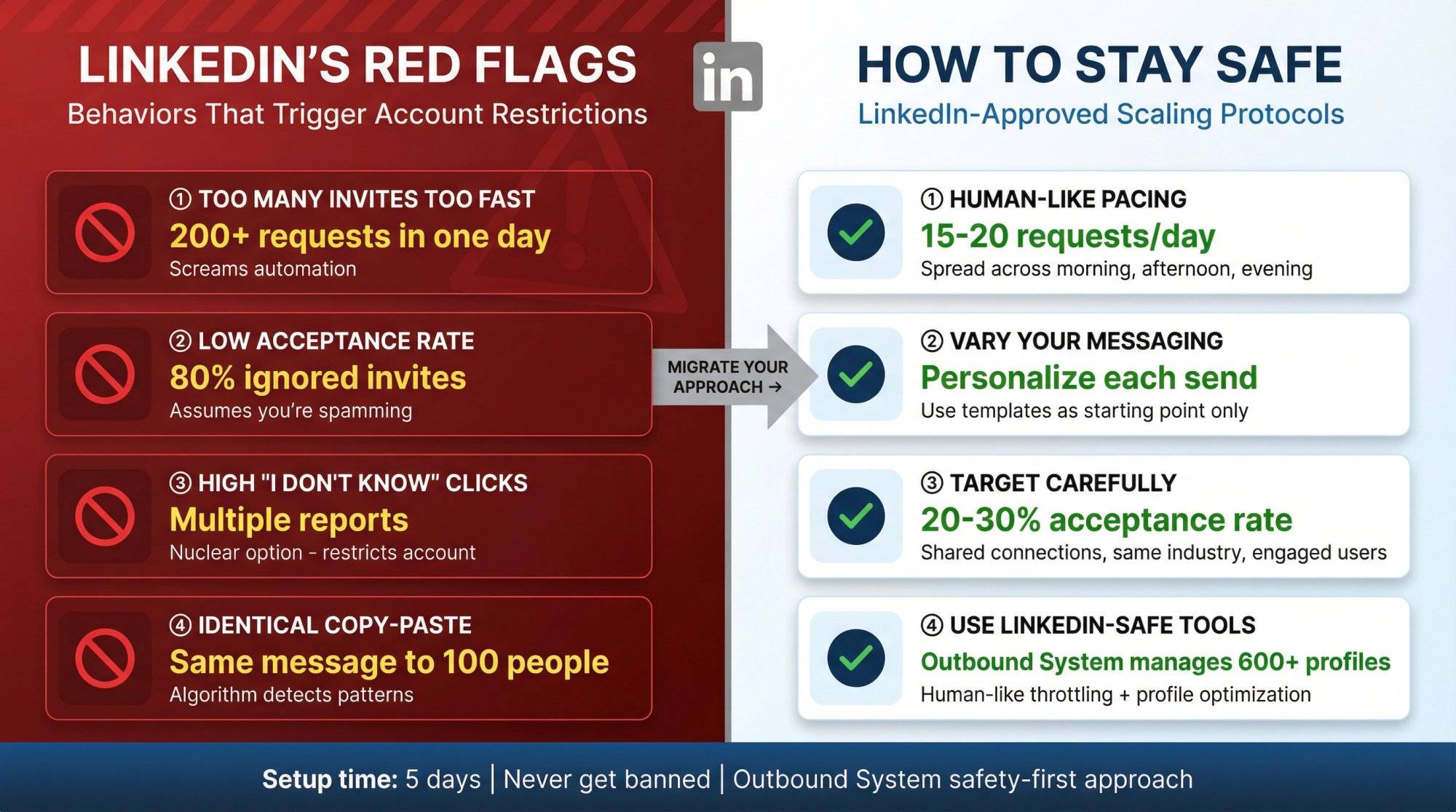
LinkedIn's Red Flags
LinkedIn watches for these behaviors:
① Too Many Invites Too Fast
Sending 200 connection requests in one day screams "automation."
② Low Acceptance Rate
If 80% of your invites are ignored, LinkedIn assumes you're spamming.
③ High "I Don't Know This Person" Clicks
This is the nuclear option. If multiple people click this, LinkedIn restricts your account.
④ Identical Copy-Paste Messages
LinkedIn's algorithms detect patterns. Sending the exact same message to 100 people gets flagged.
How to Stay Safe
① Human-Like Pacing
Send 15-20 connection requests per day spread across morning, afternoon, and evening. Don't send 100 in one hour.
② Vary Your Messaging
Use templates as a starting point, then personalize each message with specific details about the prospect.
③ Target Carefully
Only send invites to people who are likely to accept (shared connections, same industry, engaged on LinkedIn).
Learn how to build a targeted prospect list for better targeting.
④ Use LinkedIn-Safe Tools
At Outbound System, we manage 600+ profiles with a safety-first approach:
Human-like throttling and pacing
Profile optimization to reduce spam flags
Connection nurturing sequences
A/B testing for message performance
Real-time metrics and CRM integration
Dedicated account management
We advertise that accounts "will never get banned" because we use the safest LinkedIn automation tools with careful throttling and human-like behavior patterns. Our setup time is 5 days (compared to 14+ days with other providers) and we manage everything from targeting to follow-ups to meeting scheduling.
Our pricing:
Plan | Price/Month | Open InMails | Profiles | Prospects/Month | Additional Features |
|---|---|---|---|---|---|
Growth | $499 | Up to 800 | 1 | 500 | Human-written copy, profile optimization, A/B testing |
Scale | $699 | Up to 1,600 | 2 | 1,000 | All Growth features + combined cold email and LinkedIn |
Enterprise | $999 | Up to 3,200 | 4 | 2,000 | All Scale features + U.S. appointment setter |
All plans include human-written copy, profile optimization, connection nurturing, A/B testing, dashboard access, real-time metrics, CRM integrations, dedicated account management, and strategy calls.
Book a free 15-minute consultation to see how we can handle your entire LinkedIn outreach workflow so you focus on closing deals, not hunting for Open Profiles.
Common LinkedIn InMail and Connection Request Questions
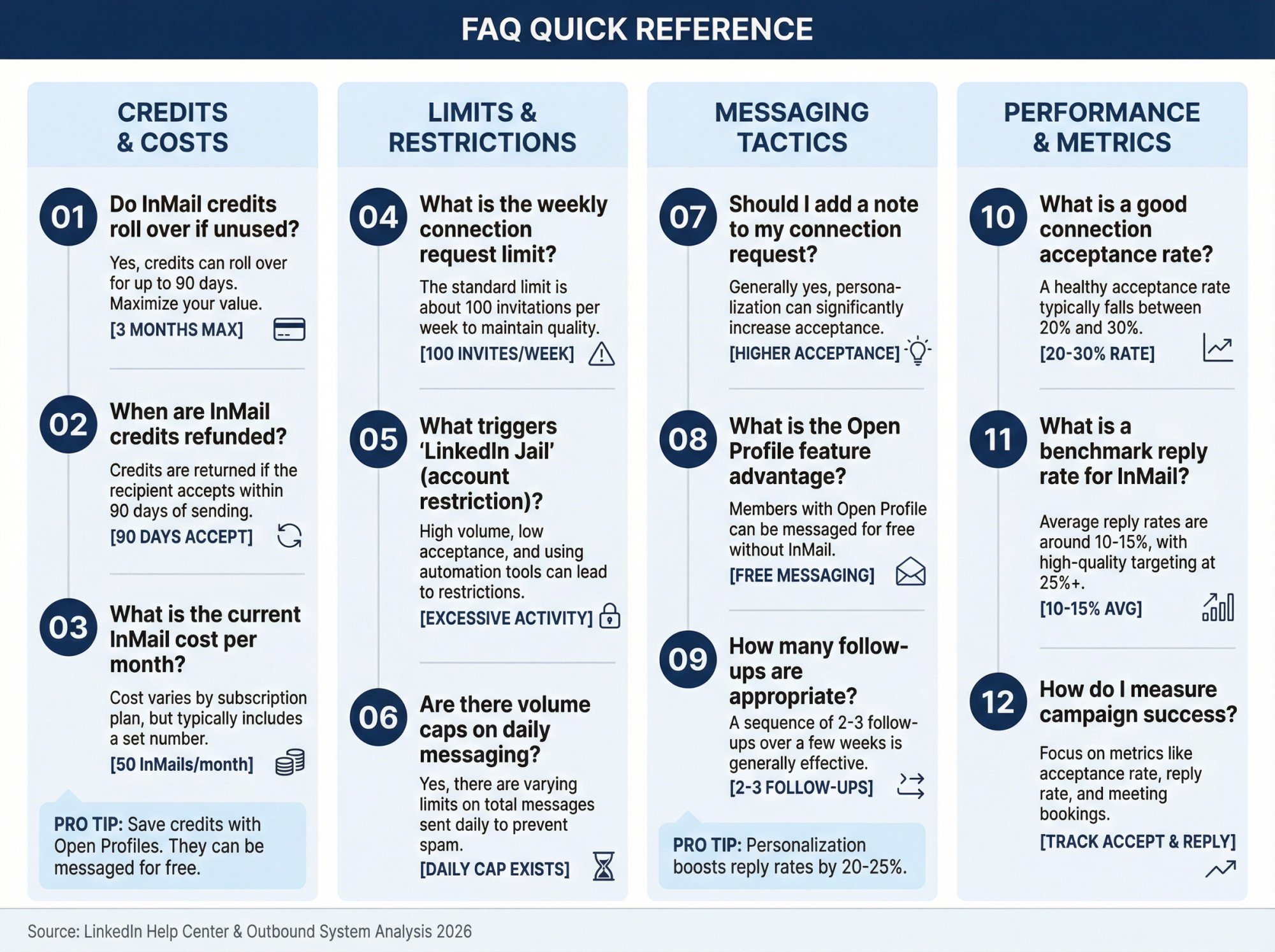
Can I send InMails without Sales Navigator?
Yes, but you'll have very limited credits. Premium Career gives you 5 InMails/month, Premium Business gives you 15. If you're running serious outbound, you need Sales Navigator Core (50 InMails/month) or higher.
What happens if I send too many connection requests?
LinkedIn may temporarily restrict your ability to send more invites (sometimes called "LinkedIn Jail"). This can last a few days to a few weeks depending on severity. Avoid this by staying under 100 invites per week and maintaining a 20%+ acceptance rate.
Do I get my InMail credit back if someone ignores my message?
No. You only get the credit back if they respond within 90 days. Even a "Not interested" response counts and returns the credit. (LinkedIn InMail policy)
Can I send a follow-up InMail if they don't respond?
No. LinkedIn prevents you from sending a second InMail to the same person while the first one is pending. You only get one shot. This is why message quality is critical.
Should I send connection requests with or without notes?
With notes (Premium accounts): Always personalize. It increases acceptance rates by 20-25%.
Without notes (Free accounts): You only get 3-5 personalized notes per month, so save them for high-priority prospects. For others, send blank invites and message them after they accept.
What's the difference between Open Profile and InMail?
Open Profile is a setting where the recipient has opted to receive messages from anyone (even non-connections) for free. If you have a Premium account and message someone with Open Profile enabled, it doesn't consume an InMail credit. (LinkedIn Open Profile documentation)
How do I find Open Profiles in Sales Navigator?
Use the "Open Profiles Only" filter in Sales Navigator's advanced search. This shows only prospects who have enabled Open Profile messaging. You can send up to 800 free messages per month to these profiles.
Learn how to use advanced search on LinkedIn to find your ideal prospects.
Can I automate LinkedIn outreach with bots?
Technically yes, but it violates LinkedIn's User Agreement. LinkedIn actively detects and bans automation tools. If you need scale, use services like Outbound System that manage outreach with human-like pacing and LinkedIn-safe protocols.
What's a good acceptance rate for connection requests?
20-30% is solid for cold outreach. Above 30% means you're targeting well and personalizing effectively. Below 20% means you need to tighten your ICP or improve your messaging.
What's a good reply rate for InMails?
18-25% is industry average. Top performers hit 30-40% with highly targeted, personalized InMails. Anything below 15% means your targeting or messaging needs work.
Should I use LinkedIn outreach or cold email?
Use both. Multi-channel outreach has significantly higher response rates than single-channel. At Outbound System, we combine cold email (using 350-700 Microsoft U.S. IP inboxes with 98% inbox placement) with LinkedIn outreach to maximize meeting bookings. Our clients see 6-7% response rates on email and 20-30% on LinkedIn, resulting in 10-30 qualified meetings per month.
Compare the two approaches in our guide on LinkedIn lead gen vs cold email.
Related Outbound System Resources
Want to build a complete outbound system that combines LinkedIn, cold email, and cold calling?
Check out these resources:
LinkedIn Lead Generation Agency – Our full LinkedIn service breakdown
Cold Email Best Practices – How to book more meetings with cold email in 2026
LinkedIn Outreach Strategies for B2B Sales Teams – Advanced LinkedIn tactics for sales teams
What is Cold Outreach: Complete Guide – Multi-channel outbound strategy guide
How to Generate B2B Leads on LinkedIn – Proven lead generation strategies
LinkedIn Lead Generation for B2B Strategies – Complete B2B LinkedIn playbook
B2B Marketing LinkedIn Strategies – Marketing-led LinkedIn approaches
Sales Prospecting Techniques – Advanced prospecting tactics
Top B2B Lead Generation Methods – All channels compared
Case Studies – See how we've helped 600+ B2B companies book qualified meetings
Book your free 15-minute consultation to see how Outbound System can handle your entire LinkedIn outreach workflow (targeting, messaging, follow-ups, meeting scheduling) so you focus on closing deals.